How to improve your laptop’s webcam quality
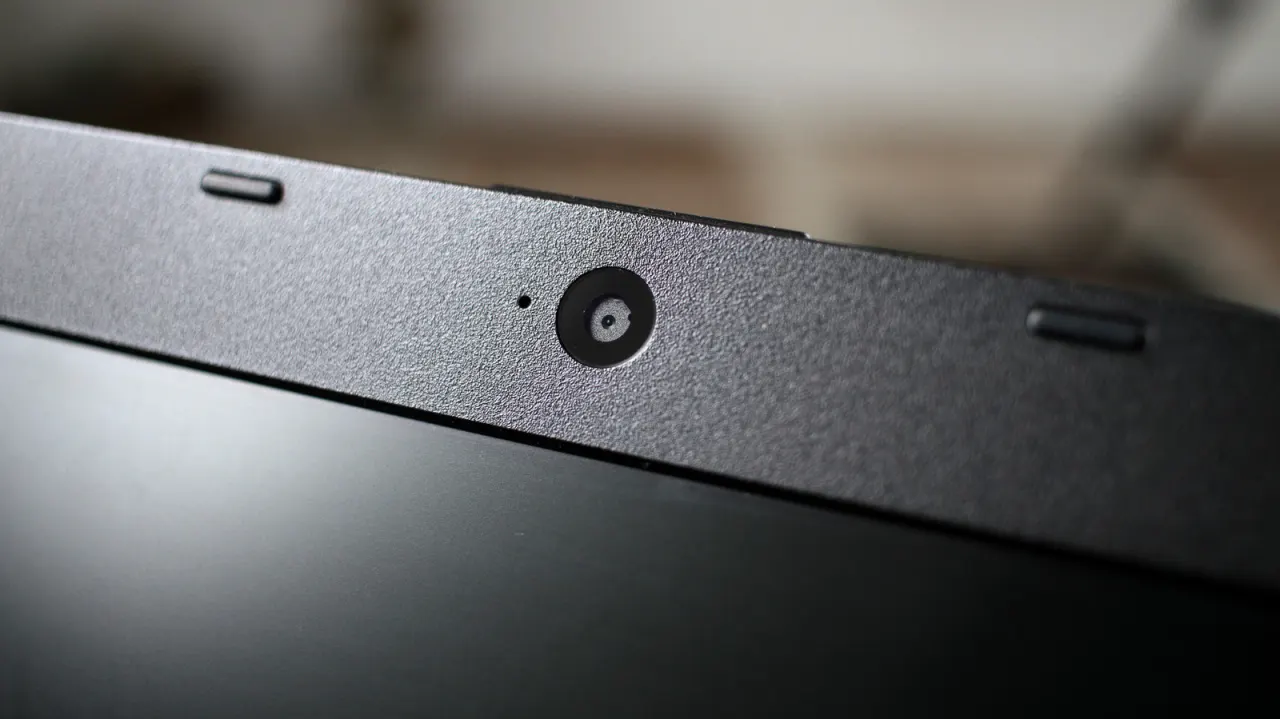
Laptop webcams often produce blurry, grainy or washed-out images because their small sensors have to fit inside thin lids and capture less light. The article says lighting and simple maintenance can make a noticeable difference, offering lower-cost fixes before buying an external camera.
Clean the lens with a microfibre cloth, face a window or place a light in front of you, and avoid bright light behind you. Adjust available camera settings such as brightness, saturation and HDR; Windows users can also try NVIDIA Broadcast or Camo, while Mac users can use Studio Light and, on Apple silicon Macs running macOS 26.2 or later, Edge Light. If those steps are not enough, consider an external webcam or using a phone or camera as one.
- Small sensors limit many laptop webcams.
- Clean the lens and improve front lighting.
- Try camera settings or software before upgrading.
New here? Start with this
Laptop webcams have become an essential tool for video calls, streaming and online meetings, yet many users find the image quality disappointing. The small sensors needed to fit inside thin laptop lids struggle to capture sufficient light, resulting in images that appear blurry, grainy or washed out. This is a fundamental technical limitation of how laptop design constrains camera capability.
As more people work and socialise remotely, the quality of one's webcam image has become increasingly important for professional and personal interactions. Poor image quality can undermine first impressions in job interviews, client meetings or conversations with loved ones. Many users therefore face a common frustration: how to present themselves clearly on camera without spending extra money on additional equipment.