Check your TV is displaying 4K content correctly
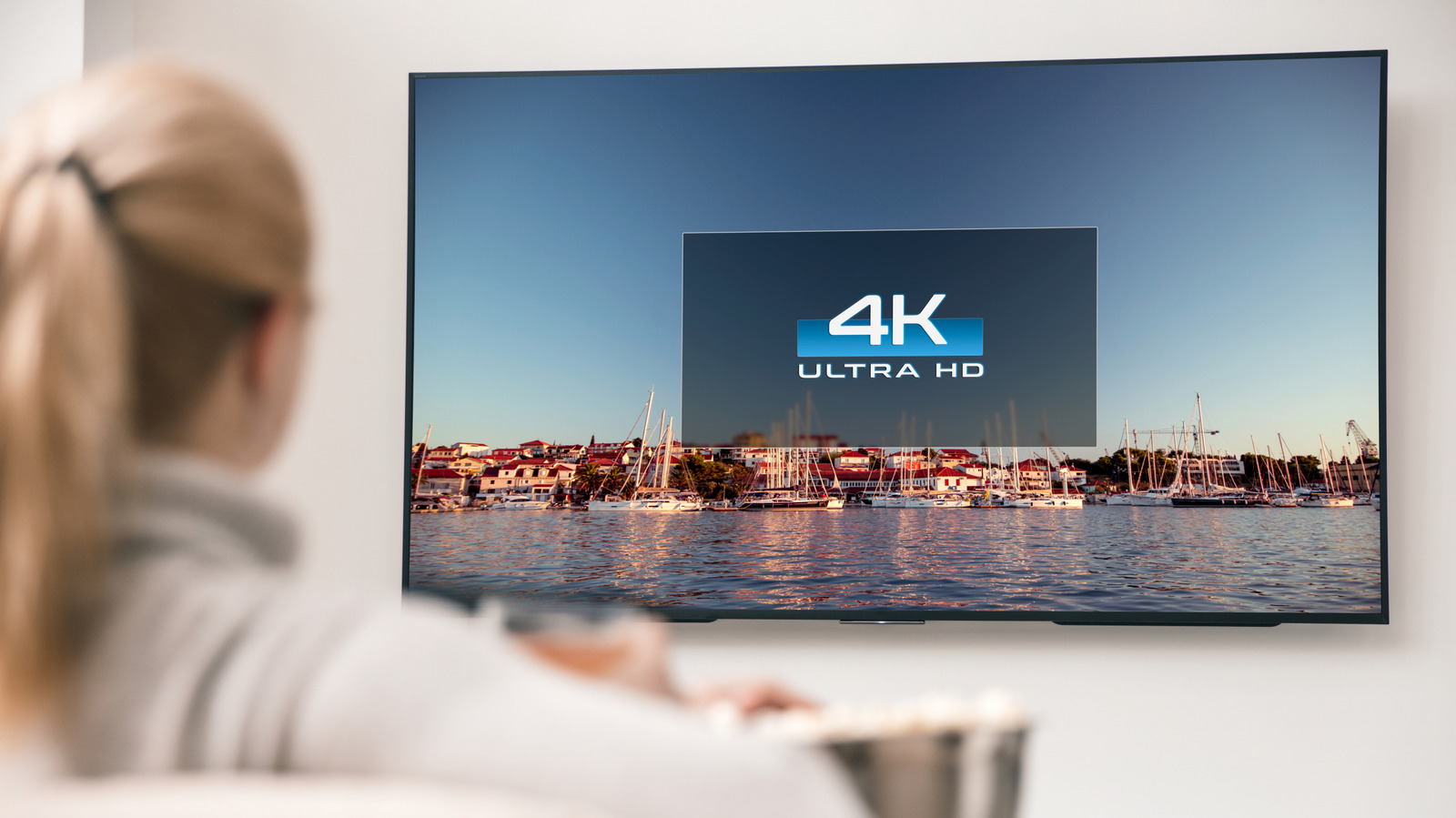
A 4K television will only display 4K content if the source, cable and settings all support it, meaning even owners of premium sets are often unknowingly watching lower-resolution footage. This matters because streaming subscriptions, gaming consoles and connected devices don't automatically guarantee the sharpest possible picture, so viewers may be missing out on quality they are paying for without realising it.
To check, users should first confirm their TV is genuinely 4K (labelled "4K" or "UHD" in the model name, found via Settings or on the unit itself), then verify the resolution shown when playing content, often via an Info button on the remote. Streaming services typically require the top subscription tier for 4K, sometimes with a manual setting to enable it, such as Disney+'s "Automatic" data option or Netflix's Premium plan; Amazon Prime Video now restricts 4K to its pricier Ultra tier. Live TV is rarely true 4K outside major sporting events, and channels labelled "4K" may in fact be upscaled rather than native resolution, so viewers should check individual titles and settings carefully.
- 4K TVs don't always play content in true 4K resolution.
- Check TV model, source device settings and cable support 4K.
- Streaming often needs top subscription tier plus 4K enabled manually.
Read the full article at the source →
Originally published by Engadget as “How to check if your TV is playing in 4K or not”.