How to make Xfce look like almost any desktop you want
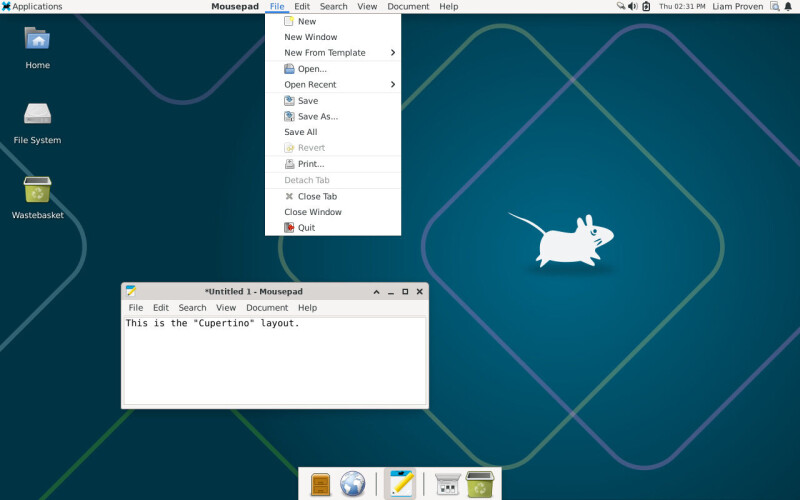
This two-part Register workshop explains how to use Panel Profiles, an optional add-on for the Xfce Linux desktop, to switch between pre-built layouts that mimic other operating systems and desktop environments. Xfce is already known for being lightweight and highly configurable, and Panel Profiles removes the need for manual tweaking by letting users switch appearances in a couple of clicks without logging out, addressing a gap that even more feature-rich desktops like KDE Plasma lack.
With Panel Profiles installed, Xfce can be made to resemble various versions of Windows, Xubuntu, MATE (or classic GNOME 2), Mac OS X, or Ubuntu Unity, and users can also save their own custom layouts. The author notes that unlike KDE Plasma, which can achieve similar visual flexibility but requires manually navigating hundreds of settings across dozens of dialogue boxes, Xfce's tool automates most of the work while still using less RAM, disk space and code overall. Part 1 covers installing Panel Profiles and its supporting components, while Part 2, referenced but not detailed here, will cover the manual configuration needed to fully replicate more unconventional layouts, including editing text files and adjusting panels by hand.
- Xfce's Panel Profiles tool switches desktop layouts in two clicks
- It can mimic Windows, Mac OS X, Unity, MATE and more
- Unlike KDE, it automates layout changes without manual settings tweaking