How to manually update Android Auto (and what it might mean if you can’t)
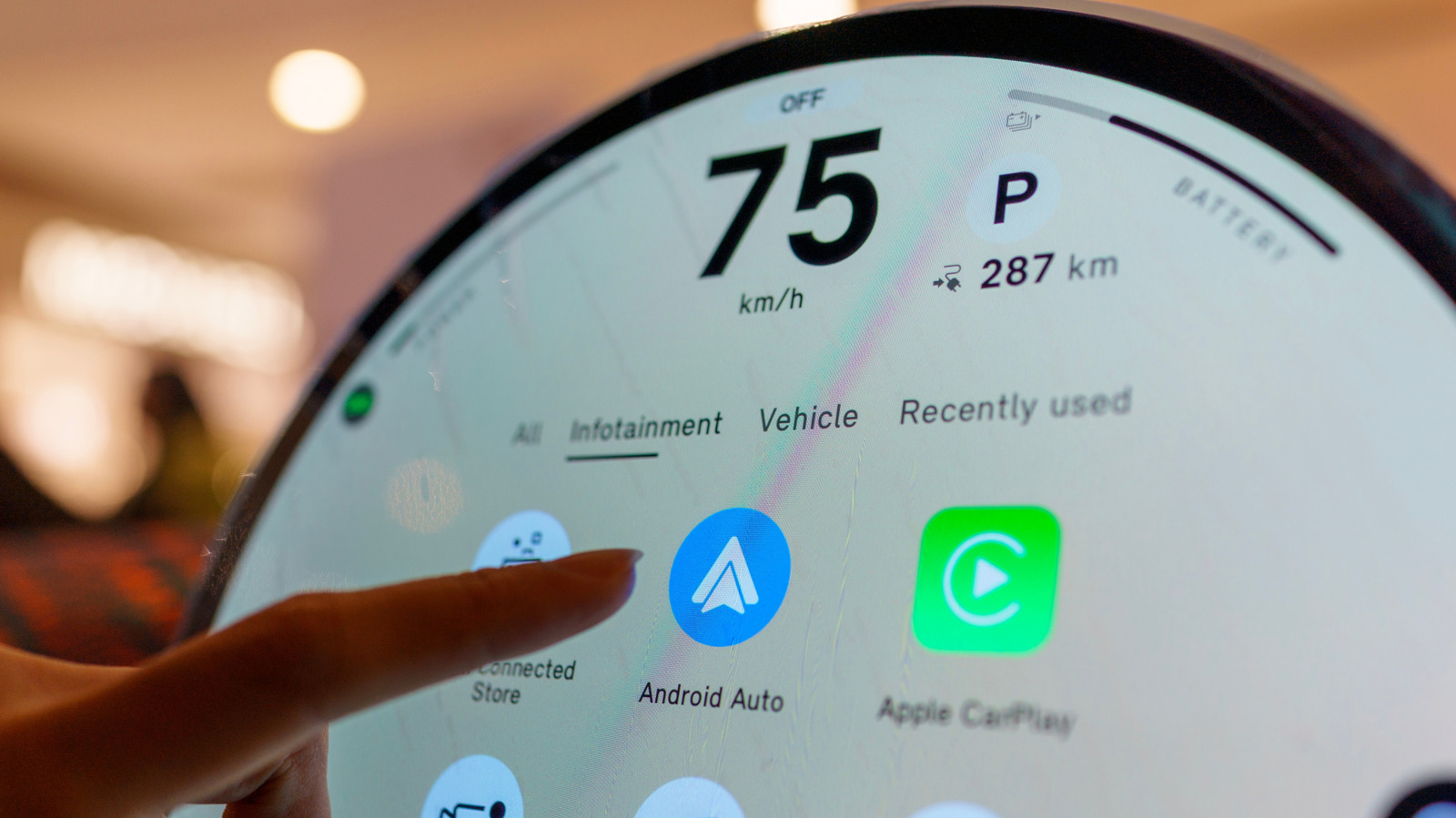
Android Auto, which runs from an app on the phone rather than as a built-in part of the car's infotainment system, can be updated manually through the Google Play Store rather than waiting for automatic background updates. This matters because automatic updates can stall or fail, particularly if the phone lacks a Wi-Fi connection, since the Play Store does not use mobile data for background app updates by default. Knowing how to check for and force an update—or troubleshoot when updates aren't available—can help resolve bugs and ensure access to new features such as Gemini integration or widget support.
To update manually, users search for Android Auto in the Play Store and select update if available, checking that "Enable auto update" is switched on via the three-dot menu; devices need Android 9.0 or later, a threshold set in 2018 that covers most phones. If no update appears, the app may already be current, but persistent glitches can often be fixed by clearing the app's storage and cache via Settings, which resets preferences without affecting data in linked apps like Google Maps or Spotify. As a further step, users can uninstall updates to roll back to the oldest version bundled with their phone, and either stick with that more stable build or try reinstalling the latest version to see if performance improves.
- Android Auto updates via the Play Store, not system updates.
- Automatic updates can stall without Wi-Fi; check manually if needed.
- Clearing cache or rolling back the app version can fix persistent bugs.
Art Celebrity Culture Entertainment Gadgets Software Technology