Three restart techniques fix Samsung Galaxy tablet performance issues
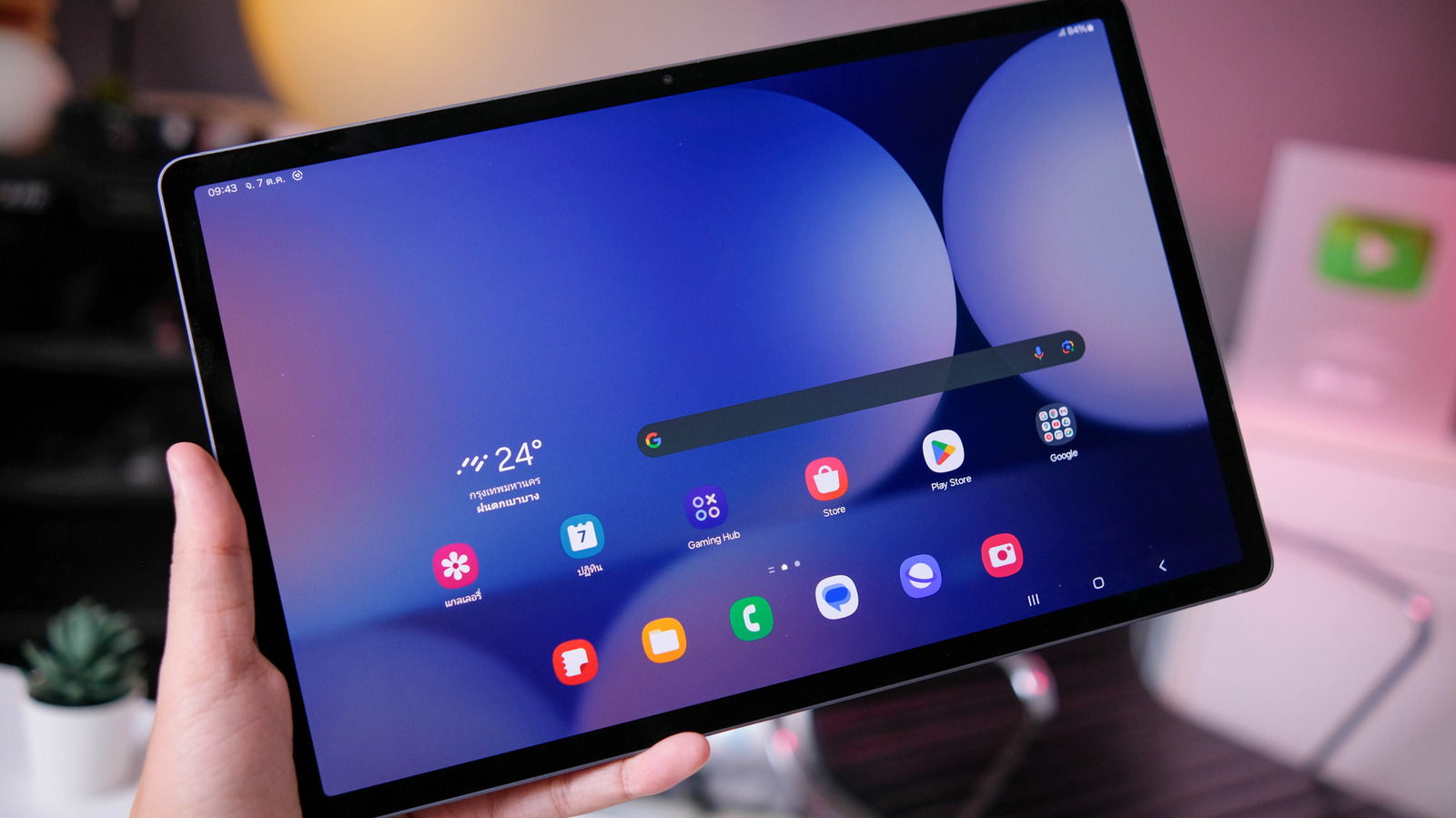
This is a how-to guide explaining three methods for rebooting a Samsung Galaxy tablet, aimed at users dealing with slow performance, frozen screens or unresponsive apps. It matters because most tablet problems can be resolved without professional help, and knowing which reboot method suits which symptom saves time and avoids unnecessary data loss.
The guide outlines a standard restart for everyday slowdowns, a force restart for a fully frozen screen, and a last-resort recovery process (including a factory reset) for persistent issues, with a note that a factory reset erases all data and should only be used after backing up files. It also points to Samsung's built-in diagnostic tool, within the Samsung Members app, for checking hardware issues if reboots don't help.
– A standard restart (via buttons or quick settings) fixes sluggishness or app crashes without data loss
– A force restart (Volume Down + Power) clears a fully frozen screen
– If neither works, force shutdown, battery drain/recharge, or a factory reset (which wipes all data) may be needed
– Samsung Members app's diagnostic tool can check for hardware faults if problems persist
- Three reboot methods fix most Samsung Galaxy tablet problems
- Standard restart for slowdowns; force restart for frozen screens
- Factory reset and diagnostics are last resorts, back up data first
Art Celebrity Culture Entertainment
Read the full article at the source →
Originally published by Engadget as “How to reboot your Samsung Galaxy tablet”.