How to see what’s taking up space on your Windows PC
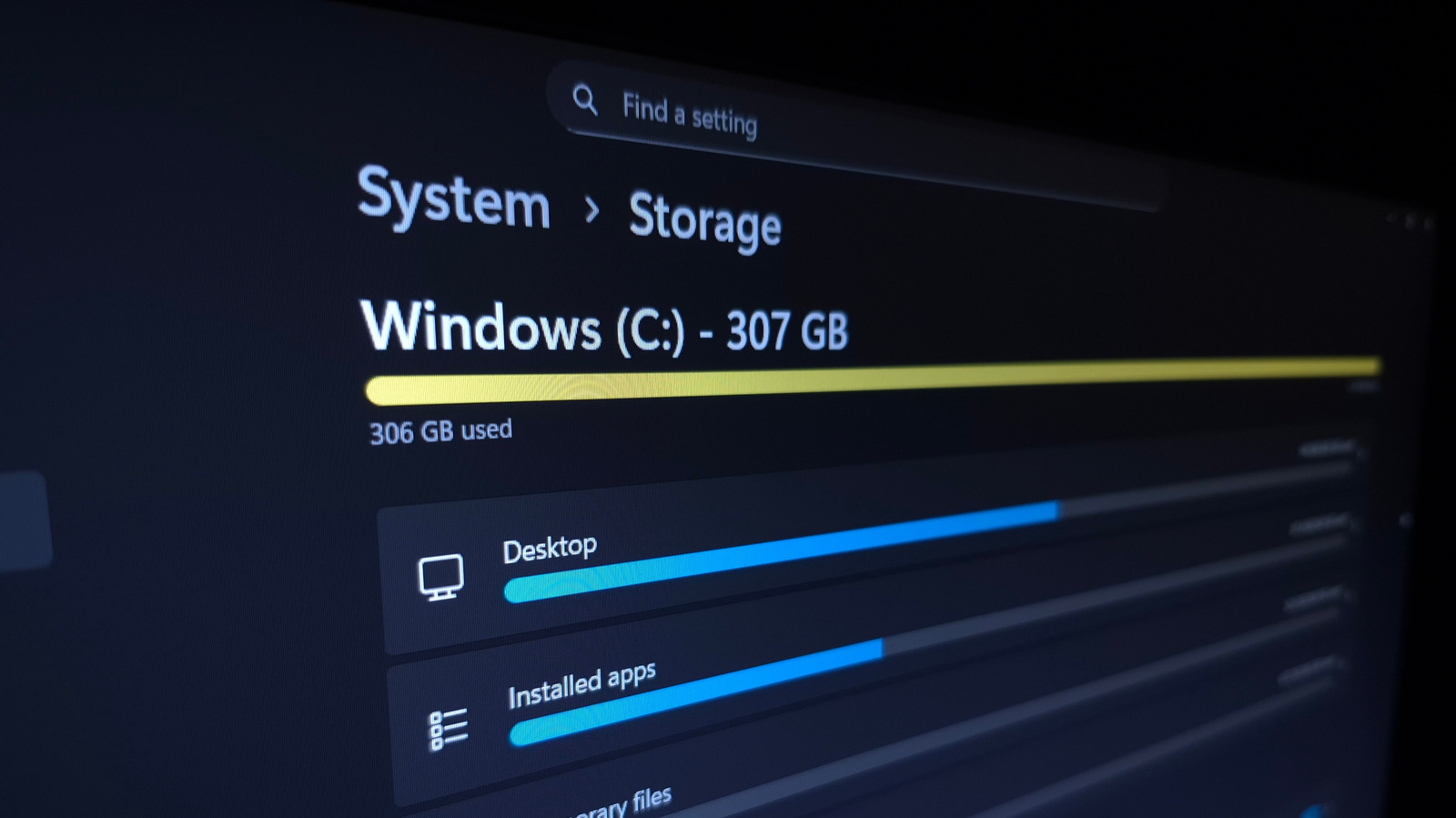
This is a practical how-to guide explaining ways to identify and clear out what's using storage space on a Windows PC, aimed at users running low on disk space. Rather than deleting files at random, the article recommends a methodical approach starting with Windows' built-in Storage settings, which breaks down disk usage by category and lets users target the biggest space users first, such as installed applications, temporary files and system features.
Key steps include going to Settings > System > Storage to see a usage breakdown, then sorting installed apps by size to uninstall or move the largest ones; clearing temporary files and cache via the Cleanup System Files option; and carefully checking the Downloads folder and Recycle Bin before emptying them. More advanced options include disabling hibernation (freeing up the large hiberfil.sys file via Command Prompt) and reducing System Restore's allocated space, though these should be a last resort. For finer detail than Windows' native tool provides, the article recommends third-party software such as TreeSize Free to visualise which folders are consuming the most space.
- Windows' Settings > Storage shows what's eating up disk space
- Sort installed apps by size to spot easy deletions
- Advanced tricks include disabling hibernation and using tools like TreeSize Free