World news and discussion on TalkFuse.
Here’s how to reset your ASUS router
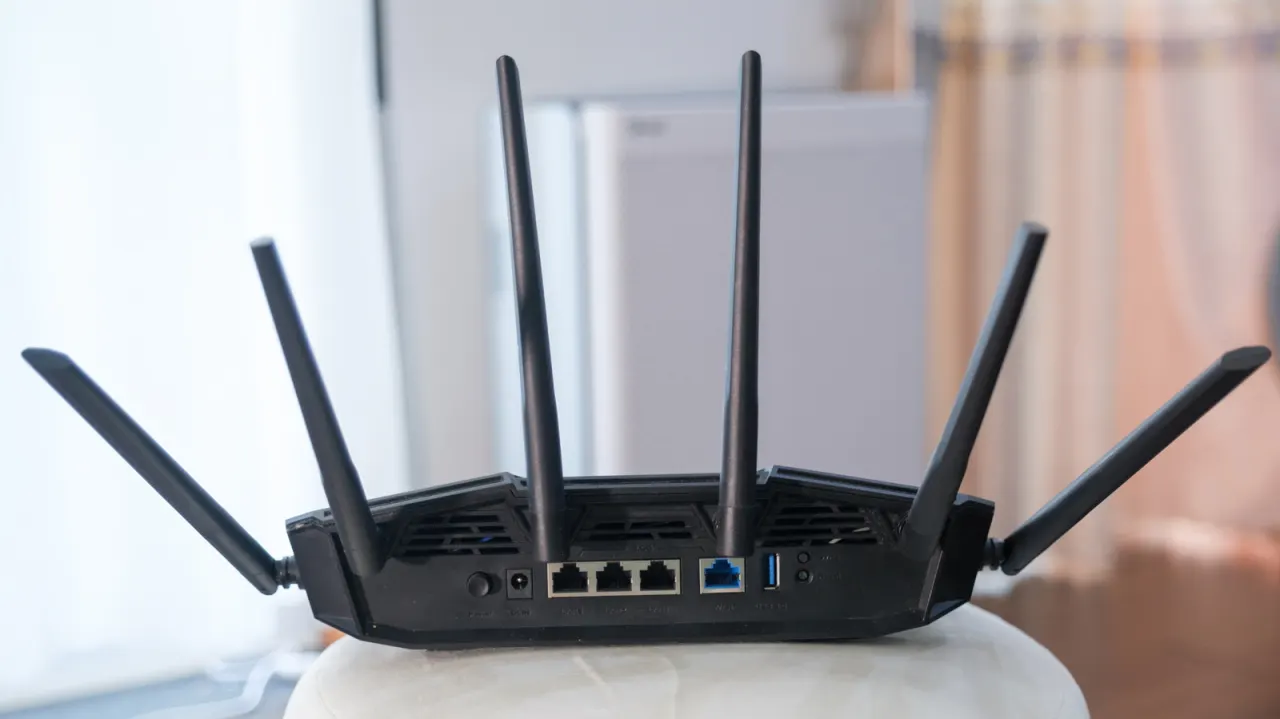
Resetting an ASUS router can resolve common connection and access problems, such as slow internet, lost signals or forgotten login details, but it should be treated as a last resort because it restores factory settings. ASUS offers two main reset methods: using the router’s web portal or app, or pressing the physical reset button; if these fail, a model-specific hard factory reset may be needed.
Before resetting, users should record account credentials and any custom configuration they want to restore, and contact their internet provider if login details are unavailable. A hard reset also deletes AiProtection, Traffic Analyzer and web-history logs, while ASUS has at least eight different hard-reset procedures depending on the router model; the article advises trying a standard reboot first.
In short
- Resetting can fix common ASUS router problems.
- Save settings and credentials before restoring factory defaults.
- Hard-reset instructions vary by router model.
Explained simply
An ASUS router is the device that connects computers, phones and other devices in a home or office to the internet. If the connection is slow or unreliable, or the router’s login details have been forgotten, restarting or resetting it may help.
A reset restores the router’s factory settings, which can remove saved network names, passwords and other custom choices. ASUS provides reset options through its web portal or app, and through a physical button; the exact steps can vary by model.
Before resetting, users may need to note down their internet account details and any settings they want to set up again. A standard restart is a simpler first step, while a factory reset can also erase router activity records and security settings.