How to change and customize your Apple CarPlay display
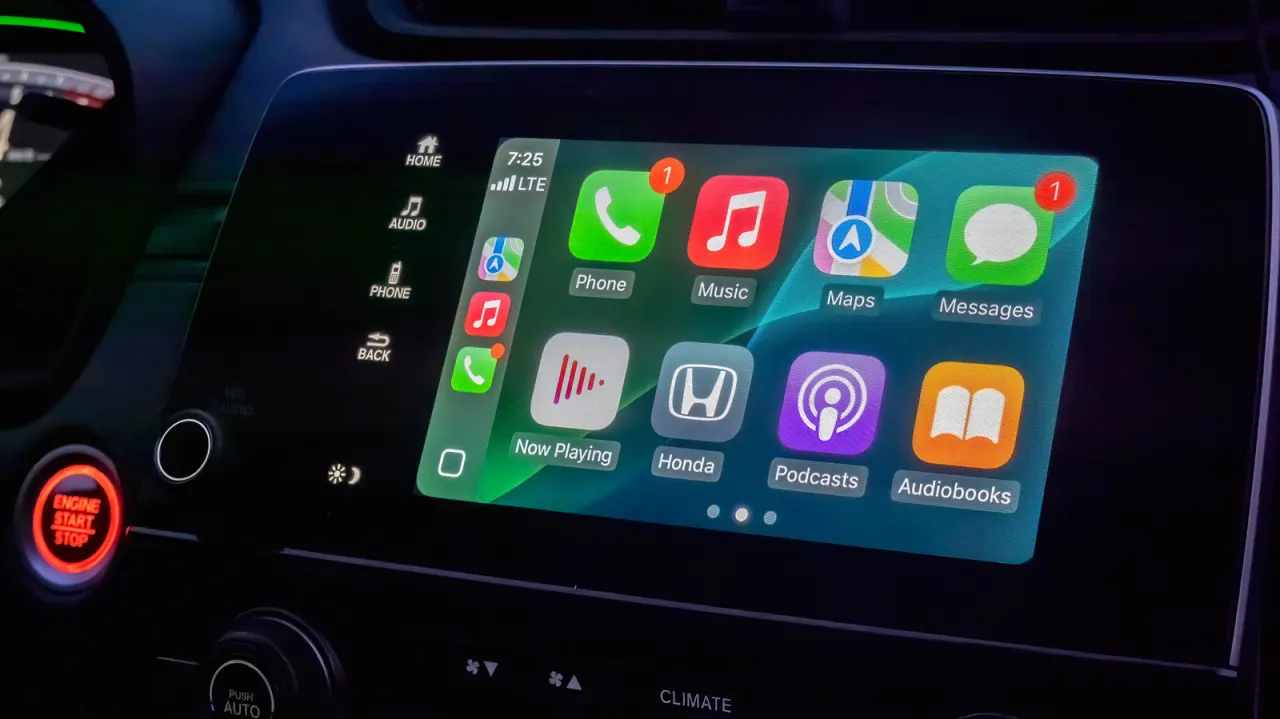
Apple's CarPlay comes with a solid default setup, but it offers several personalisation options that can make the interface more convenient and easier to use on the road. These tweaks range from display and appearance settings adjusted directly on the car's touchscreen to app and widget arrangements configured via the iPhone's Settings app, with Siri improvements in iOS 27 also set to make hands-free control more reliable.
Users can switch CarPlay's default dark mode to light or automatic via Settings > Appearance, and customise wallpapers and icon packs (including Apple's Liquid Glass-style clear icons) through the CarPlay Settings menu, alongside text-size adjustments in Accessibility. App layout, however, is configured on the iPhone itself, under Settings > General > CarPlay, where frequently used apps can be reordered and unwanted ones removed or hidden. Widgets, introduced to CarPlay with iOS 26 and accessible by swiping right from the dashboard, can similarly be customised from the phone's CarPlay settings to prioritise useful stacks such as the clock, calendar, media player and weather.
In short
- CarPlay's appearance, icons and text size can be adjusted on-screen.
- App layout and widgets are customised via the iPhone's Settings app.
- iOS 26 added widgets; iOS 27 brings improved hands-free Siri.
Explained simply
Apple CarPlay links an iPhone to a compatible car’s screen, letting drivers use selected phone features such as navigation, calls and music through the car’s controls. Apple provides a standard layout, while some display and app choices can be adjusted to suit the driver.
The car’s touchscreen handles options such as appearance, wallpaper and text size, while the iPhone’s Settings app is used to arrange or hide apps and choose which widgets appear. These settings matter because they let drivers put familiar, useful information within easier reach while using CarPlay.