Apple TV remote shortcuts speed up app management and settings changes
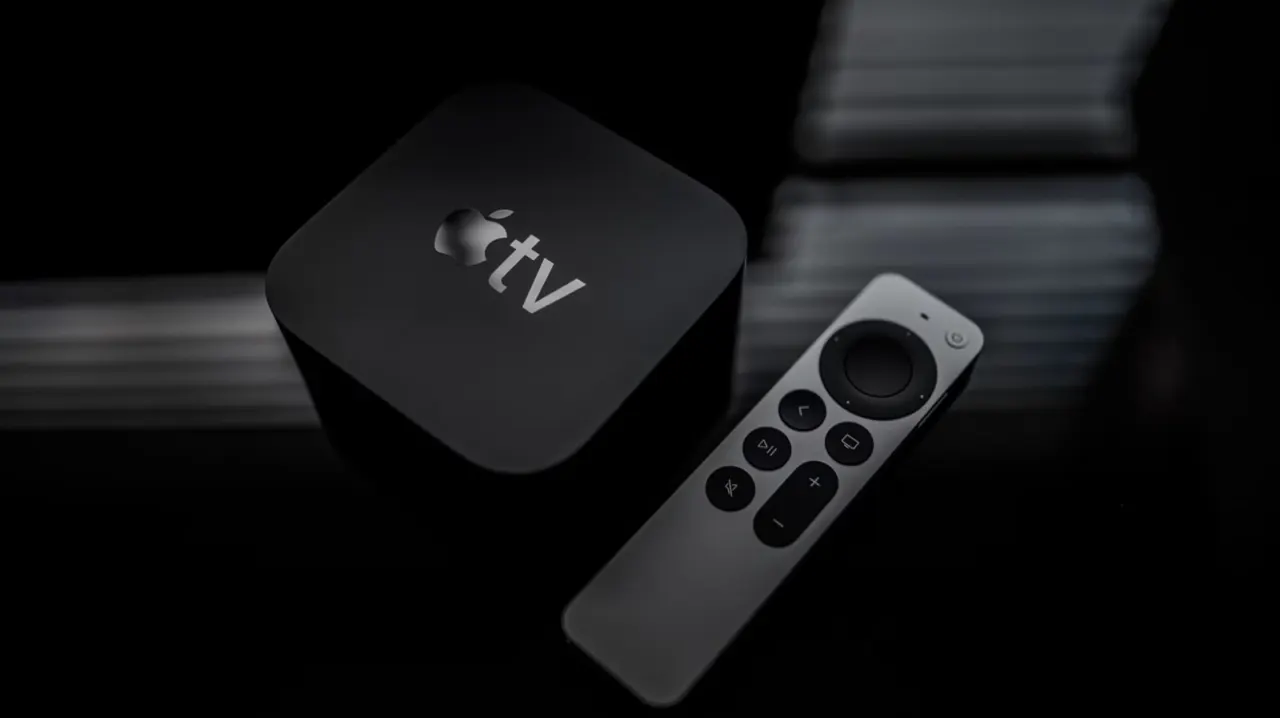
The Apple TV remote has several shortcuts that can make navigating menus, managing apps and adjusting settings quicker. They matter most when an app freezes, you want to change speakers or you need more precise control while watching.
Double-press the TV button to view open apps and swipe up on one to close it; hold the button to open Control Centre, where you can change audio output and access other settings. Press Play/Pause while moving a finger across the clickpad to scrub through video, and use circles for finer control. The button also switches between upper- and lower-case when typing passwords; VoiceOver reads menus aloud, and double-pressing Back can start a screen saver.
In short
- Double-press the TV button to close an app.
- Hold it to open Control Centre and switch speakers.
- Use the clickpad to scrub through video.
Explained simply
Apple TV is Apple’s media player, which connects to a television and runs streaming apps. Its remote has a clickpad for moving through menus, alongside buttons for playback and navigation.
The TV button opens the Apple TV home screen and gives access to open apps and Control Centre. The clickpad can also be used to move through a programme, while the remote offers tools such as spoken menu descriptions and an on-screen keyboard.
These controls matter when an app stops responding, or when someone needs to adjust sound, playback or accessibility settings. Knowing the shortcuts can make those tasks quicker without needing to search through menus.
Read the full article at the source →
Originally published by Engadget as “Your Apple TV remote has handy shortcuts most people never use”.