Technology news and discussion on TalkFuse.
How to change and customize your app icons on Samsung Galaxy
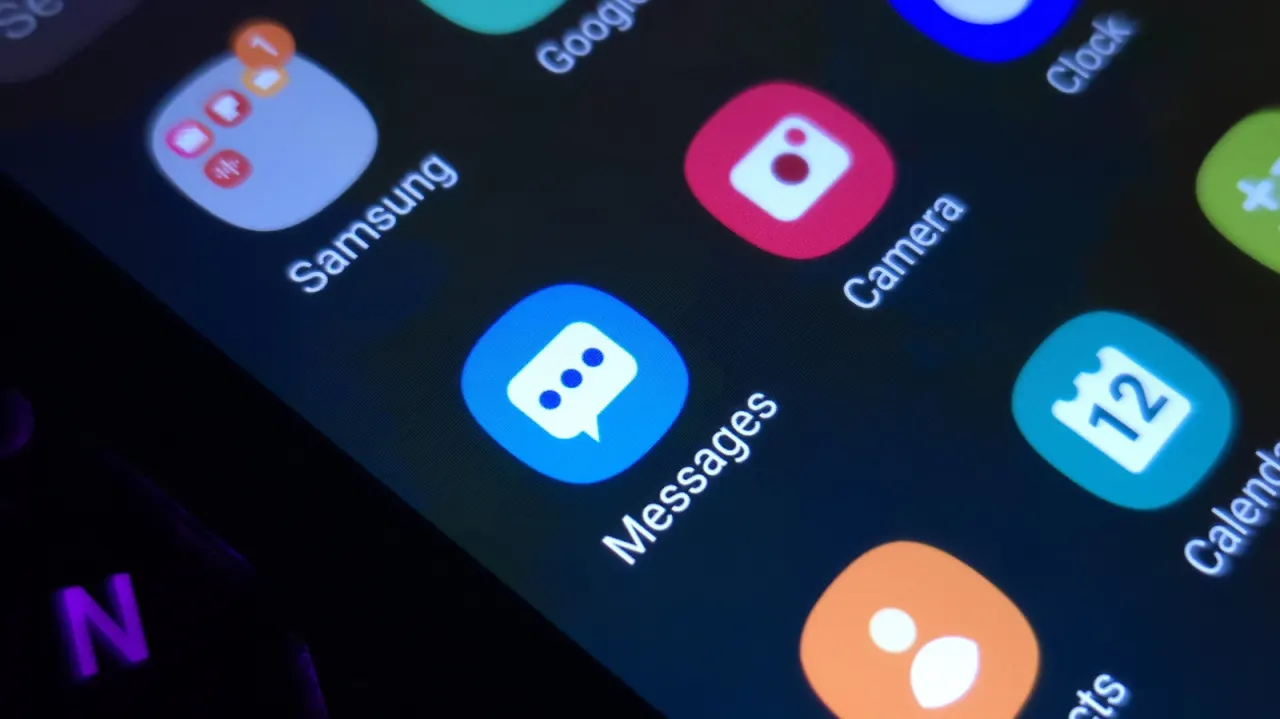
Samsung Galaxy owners can change their phone’s appearance by applying downloaded icon packs and themes, which can also alter the colours of system apps and the Quick Panel. The guide explains how to find and apply these options, while noting that users cannot turn their own images into app icons through the Themes app.
More customisation is available through Good Lock and its add-ons, including controls for the home screen, lock screen, notifications, gestures and Quick Panel. Samsung’s Wallpaper and style settings also let users apply a colour palette across parts of the interface, including many app icons; One UI 9 adds ways to resize and rearrange Quick Panel elements.
In short
- Download icon packs and themes through Samsung Themes.
- Good Lock offers deeper controls for screens, gestures and menus.
- Colour palettes can restyle many app icons and interface elements.
Explained simply
Samsung Galaxy phones run One UI, Samsung’s version of the Android software used on many phones. It lets users change parts of the interface, including the home screen, system colours and Quick Panel, where settings such as Wi-Fi and brightness are found.
Samsung provides themes and icon packs, while its Good Lock app offers extra controls for parts of the phone’s appearance and layout. These options affect how the interface looks and works, but the available changes depend on the software version and the tools Samsung provides.