Check cable, Bluetooth and Wi-Fi for Android Auto connection faults
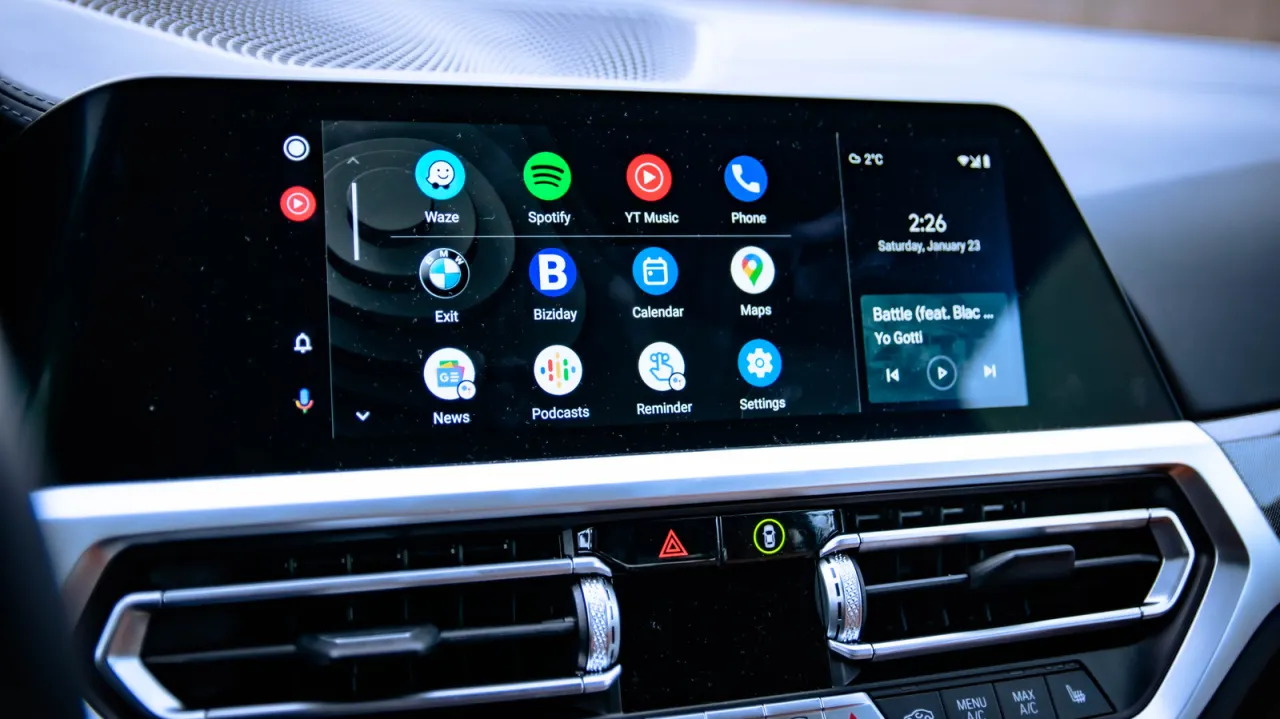
Engadget has published a troubleshooting guide for Android Auto users whose phones fail to connect properly to their car's infotainment screen, a common issue given how widely the platform is used to access maps, messages and other apps while driving. The piece emphasises that most faults stem from the connection between phone and vehicle rather than a deeper software bug, meaning fixes are usually simple and don't require technical expertise.
The guide recommends checking wired connections first, ensuring the USB cable is undamaged, supports data transfer (not just charging), is under six feet long, and avoiding extension cables; trying a different port or cable can also help. For wireless users, it suggests confirming Bluetooth and Wi-Fi are enabled and forcing a manual reconnection. If problems persist, it advises the "three Rs" — restarting the phone, forgetting the paired car, then reconnecting from scratch — plus clearing the Android Auto app's cache or data via phone settings, and finally ensuring both Android and Google Play Services are fully updated.
- Guide explains fixes for Android Auto connection failures between phone and car
- Check cables, ports and wireless (Bluetooth/Wi-Fi) settings first
- If unresolved, restart phone, reset pairing, clear app cache, update software
New here? Start with this
Android Auto lets an Android phone connect to a car’s infotainment screen, so drivers can use features such as maps and messages through the car. It can connect by USB cable or wirelessly, using Bluetooth and Wi-Fi.
The connection depends on the phone, the car’s system and, for a wired link, the cable and USB port working together. That means a fault can have several possible sources, and the same phone may connect differently in another vehicle.
Android Auto is part of Google’s wider services for Android phones, while car makers provide the screens and systems it connects to. Reliable connections matter because drivers use these systems to access information and apps while on the road.
Read the full article at the source →
Originally published by Engadget as “Android Auto not working? Here’s what to check first”.