Technology news and discussion on TalkFuse.
Troubleshoot an external hard drive that your computer cannot detect
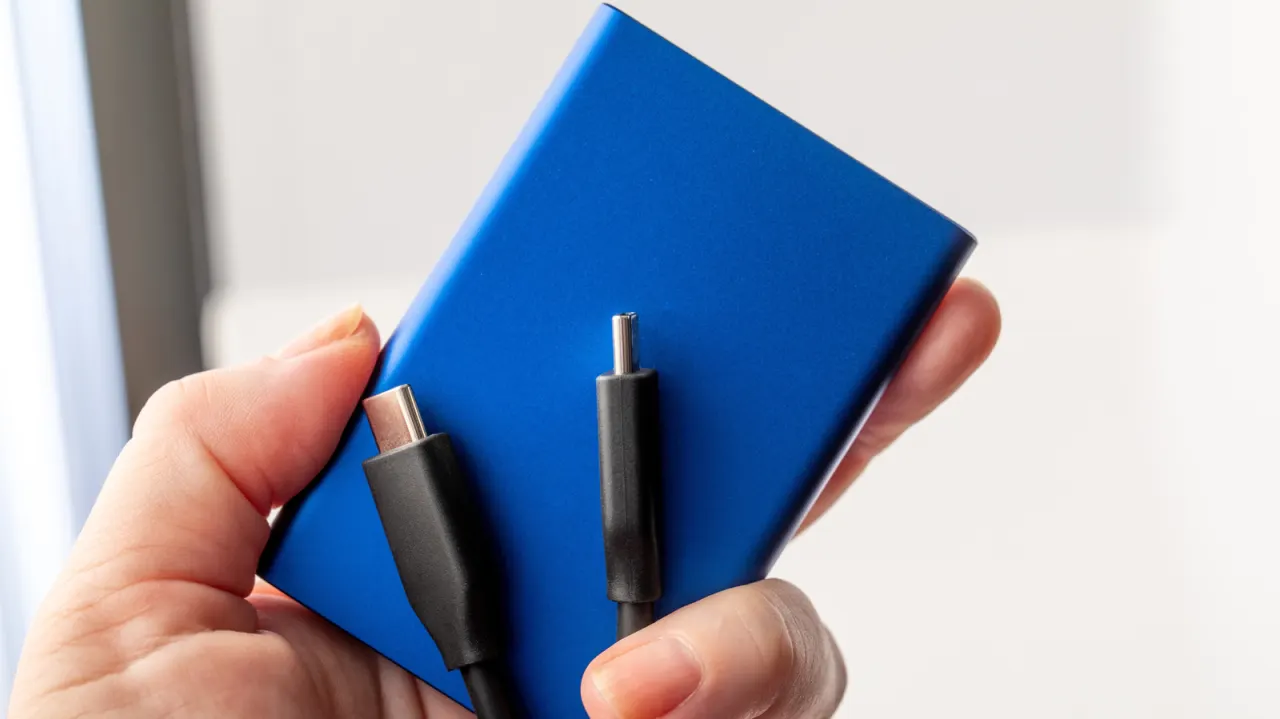
An external hard drive that a computer cannot detect may have a simple connection or power problem, or need a software repair. The article recommends checking these causes before assuming the drive has failed, as some fixes can restore access without costing money.
Try another port, compatible cable, power supply or computer first. In Windows 11, check Device Manager and Disk Management; CHKDSK may repair errors and recover bad sectors. On a Mac, use Disk Utility to show, mount or run First Aid on the drive. Updating drivers or the operating system may also help. Reformatting is a last resort because it erases the drive’s data.
In short
- Check the cable, port and power supply first.
- Windows and Mac tools may help repair or mount the drive.
- Reformatting can erase data, so leave it as a last resort.
Explained simply
External hard drives store files separately from a computer and connect through a cable or port. Some need their own power supply, and the computer must be able to communicate with the drive before its files can be accessed.
Windows and Mac computers include tools for checking connected drives and attempting repairs. A connection fault, driver problem or error in the drive’s file system can prevent it appearing, though the drive itself may also have failed.
This matters because a drive can contain important files, and some repair options can erase them. Reformatting, for example, prepares a drive for use but deletes its stored data.
Read the full article at the source →
Originally published by Engadget as “Here’s what you can do if your PC won’t read an external hard drive”.