How to change your home address on Google Maps
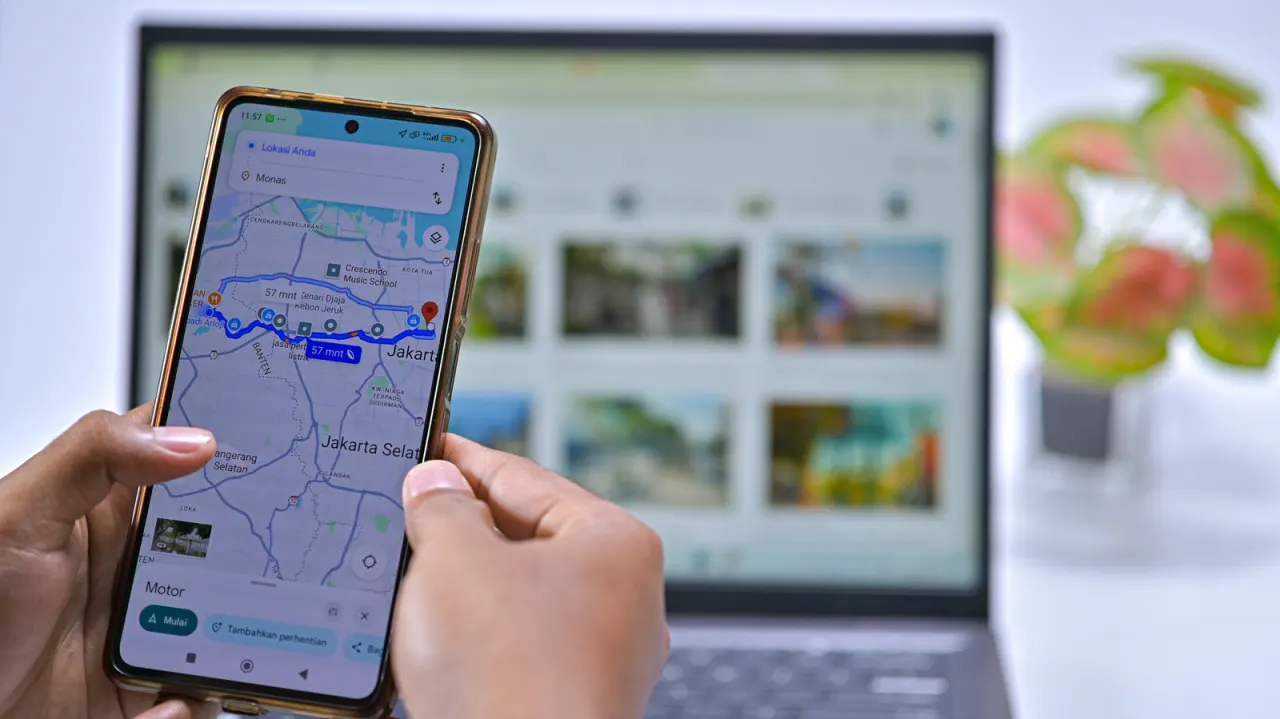
Google Maps lets users save home and work addresses for quick access to navigation and commute estimates. The article explains how to set, change or remove these addresses on the web and in the mobile app, while noting that storing a precise home location could expose it if someone accesses a device.
On the web, users can edit addresses through the Maps search box or their Google Account’s Personal info settings; in the app, they can find them under You and Labeled. Addresses can be entered, selected by placing a map pin, or removed, and users can save a nearby public place instead of their actual home. Google Maps also supports custom labels for frequently visited or hard-to-find places, including locations without street addresses.
- Save or update home and work addresses in Google Maps.
- A nearby public place can reduce exposure of your exact home address.
- Custom labels make frequent destinations easier to find.
New here? Start with this
Google Maps is a widely used navigation service that helps people find directions and check travel times. The service lets users save their home and work addresses to their account, making it quicker to navigate to these locations without having to type them in repeatedly.
Saving frequently visited addresses is convenient for getting quick commute estimates and directions, but storing a precise home location on your device comes with a privacy consideration. If someone gains access to your phone or computer, they could potentially see your exact home address.
Google Maps offers several ways to manage these saved addresses on both the web version and the mobile app, including options to add, change or remove them. Users concerned about privacy can choose to save a nearby public location instead of their exact address, or use custom labels for other places they visit frequently.