Entertainment news and discussion on TalkFuse.
How to clear the cache on your Fire TV
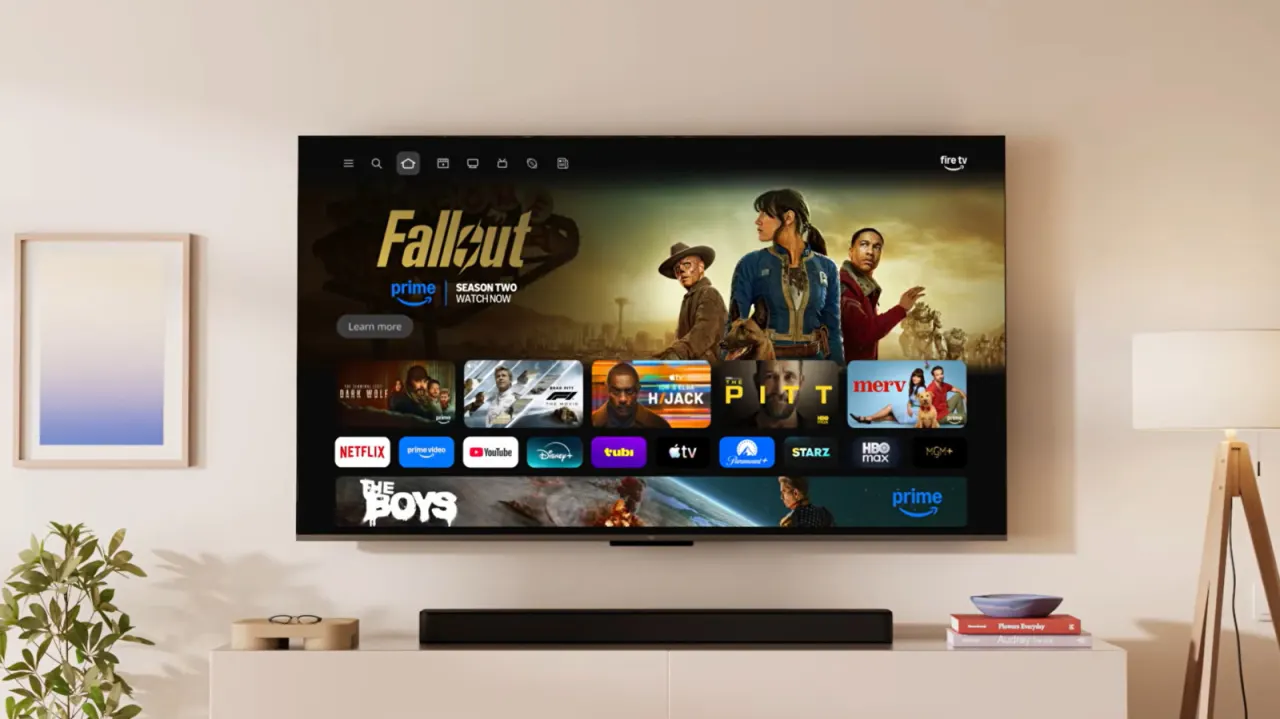
Amazon Fire TV and Fire TV Stick users can manually clear app caches to address sluggish or unresponsive performance, which may be linked to temporary data taking up storage. Clearing the cache is a straightforward troubleshooting step, though it may not make a device faster immediately because apps need to rebuild cached data.
In the settings menu, go to Applications, then Manage Installed Applications, and choose Clear All Application Caches or clear the cache for a specific app. Fire TV also automatically clears caches for apps unused for 30 days when storage is low, and users can request a clear through Amazon’s device management website. Other options include checking for software updates, offloading unused apps, restarting the device or, as a last resort, factory resetting it.
In short
- Clear app caches through Fire TV settings.
- Automatic cache clearing starts when storage is low.
- Updates, app removal and restarting may also help.
Explained simply
Fire TV is Amazon’s streaming platform, available in televisions and in plug-in Fire TV Stick devices. It runs apps for watching programmes and films, and those apps store temporary data called a cache to help them load content.
If an app becomes sluggish or stops responding, clearing its cache is one troubleshooting option. The device may take time to rebuild that temporary data, so the change may not be noticeable straight away; Fire TV can also clear caches automatically when storage is low.
Entertainment Software Technology TV