How to find and hide an app on Android Auto
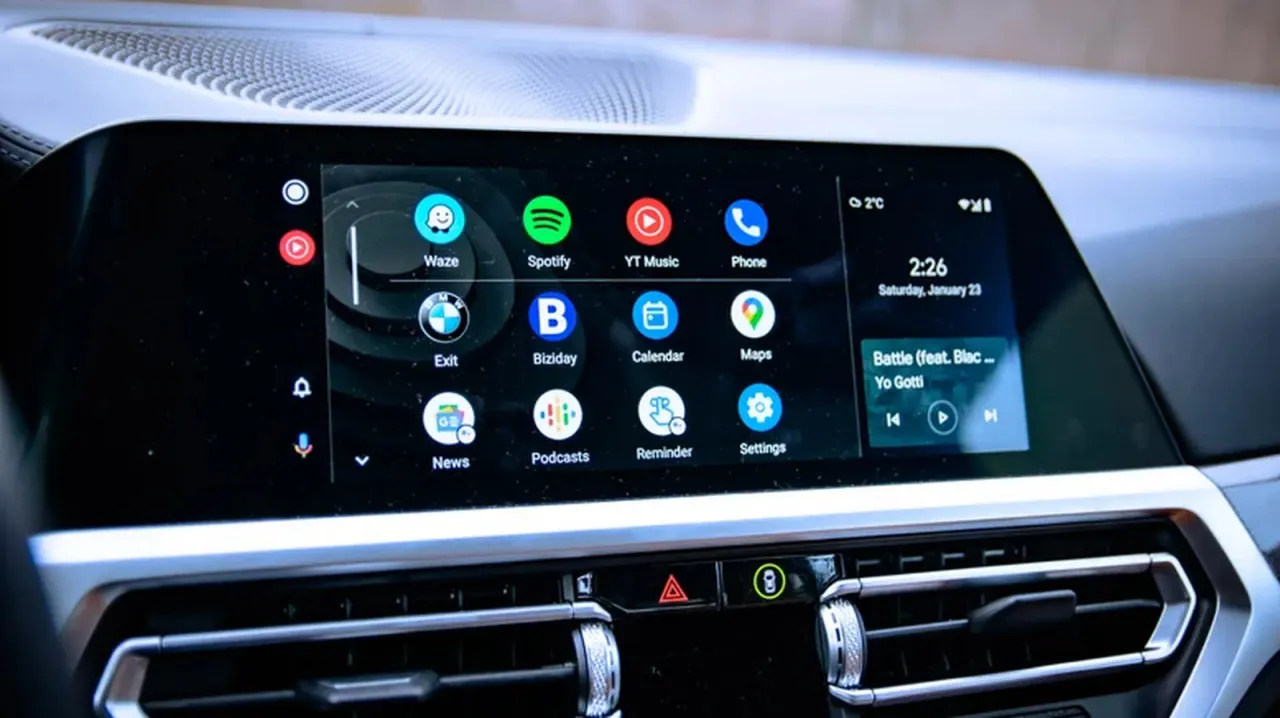
Android Auto, used by around 250 million people worldwide, has a common quirk where apps occasionally vanish from its launcher without explanation. This isn't usually a fault with Android Auto itself but a result of the phone's battery optimisation settings, which quietly deactivate apps that haven't been opened recently to save power. The fix is straightforward and requires no reinstallation or menu digging, making it an easy issue for drivers to resolve on their own.
To restore a missing app, users simply need to open it directly on their phone (updating it first if necessary) and then reconnect to Android Auto, after which it should reappear in the launcher. To stop apps disappearing in future, Samsung users in particular can disable the "auto disable unused apps" feature via Battery settings. There's no dedicated "hide app" option within Android Auto itself, but users can control which apps appear by going to Settings > Connected devices > Android Auto > Customize launcher on the car's display and ticking or unticking the relevant boxes; note that only apps designed to support Android Auto, such as Google Maps and Spotify, will show up there at all.
In short
- Missing Android Auto apps are usually just battery-disabled, not deleted
- Reopening the app on your phone restores it to the launcher
- Customise which apps show via the launcher's settings menu
Explained simply
Android Auto is the system that lets drivers use core phone apps, such as maps, music and messaging, safely through their car's own display, and it's built into roughly 250 million vehicles and devices worldwide. Because it relies on syncing with apps installed on a connected phone, it can be affected by settings on the phone itself, not just by the car's software. One recurring niggle for users is that apps sometimes disappear from the in-car menu, which can be confusing if you don't know why it's happening.
The main players here are Google, which develops Android Auto, and phone manufacturers such as Samsung, whose own battery-saving features can interact with it. These manufacturers build power-management tools into their phones to preserve battery life, and these tools can automatically switch off apps that haven't been used in a while, including ones linked to Android Auto.
This matters because it affects a huge number of everyday drivers who rely on Android Auto for navigation, calls and entertainment, and a missing app can be mistaken for a bug or a more serious problem. Understanding that it's usually down to phone settings, rather than a fault with Android Auto itself, is useful context for anyone trying to get their setup working reliably again.
Entertainment Gadgets Music Software Technology