How to know if your USB-C ports can support video
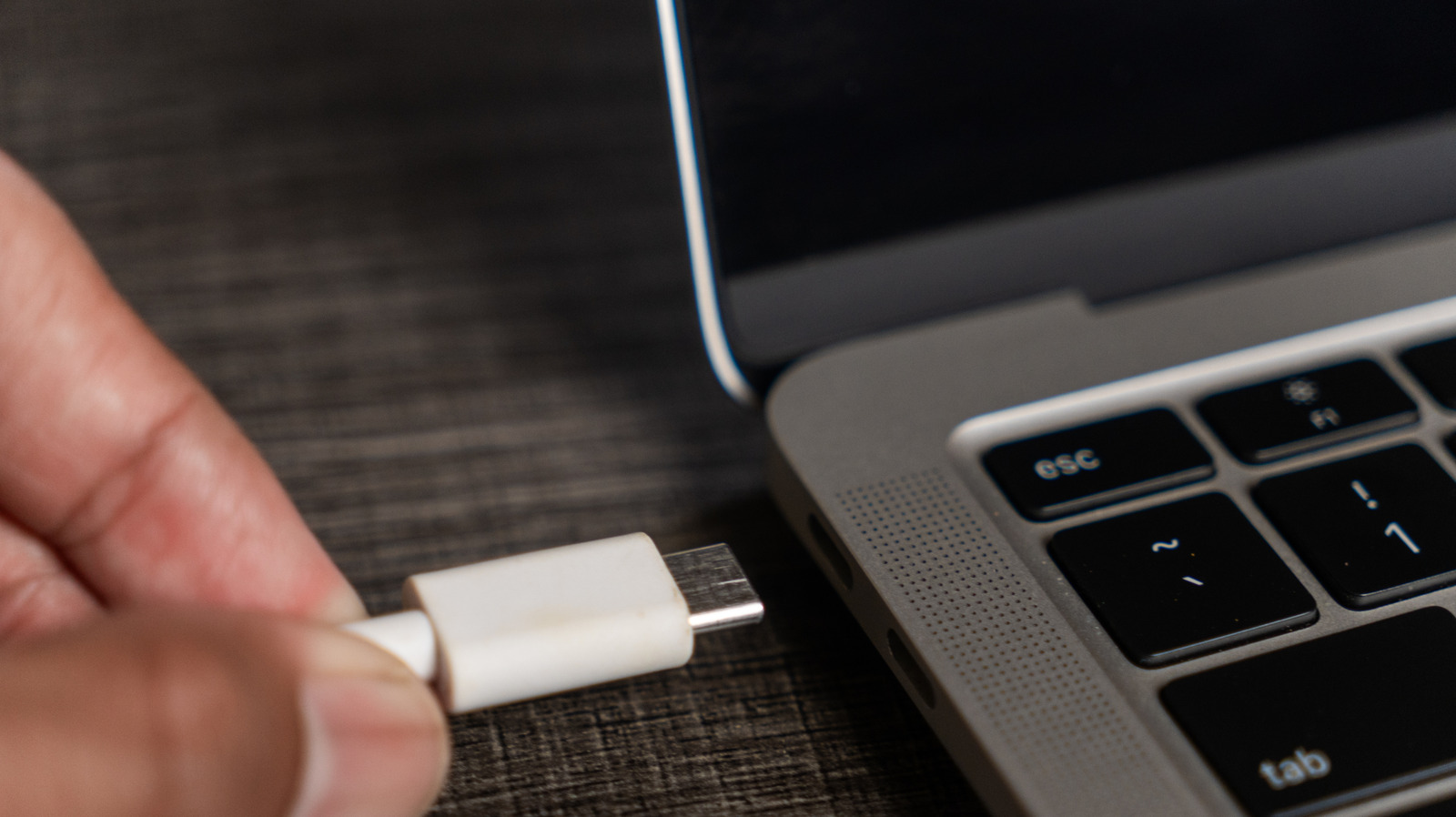
USB-C's near-universal adoption across laptops, phones and other gadgets has simplified charging and connectivity, but not every USB-C port or cable can carry a video signal, catching out users who assume otherwise. The key is checking whether a device, cable and display all support DisplayPort Alternate Mode (DP Alt Mode), which lets a single USB-C connection handle both data and video using the DisplayPort protocol; without matching support across all three components, video won't work.
Older USB standards such as 3.1 and 3.2 only support DP Alt Mode at the manufacturer's discretion, whereas newer USB4 connections and all Thunderbolt generations (3 through 5) guarantee it, with Thunderbolt 4 and 5 offering better performance for multiple monitors at higher resolutions and refresh rates, albeit at greater cost. Manufacturers sometimes mark compatible ports with a lightning or DP icon, but if not, checking the manual or specifications is advised. Where video-capable USB-C isn't available, alternatives include using an HDMI port directly (ideally HDMI 2.0 or later), or an active USB-to-HDMI adapter, though these introduce overhead unsuitable for gaming or high-resolution needs.
- Not all USB-C ports or cables support video output.
- Check for DisplayPort Alternate Mode (DP Alt Mode) compatibility across device, cable and display.
- USB4 and Thunderbolt 3-5 guarantee video support; HDMI or adapters are fallback options.