How to make your iPhone’s alarm ring at full volume even when your calls are muted
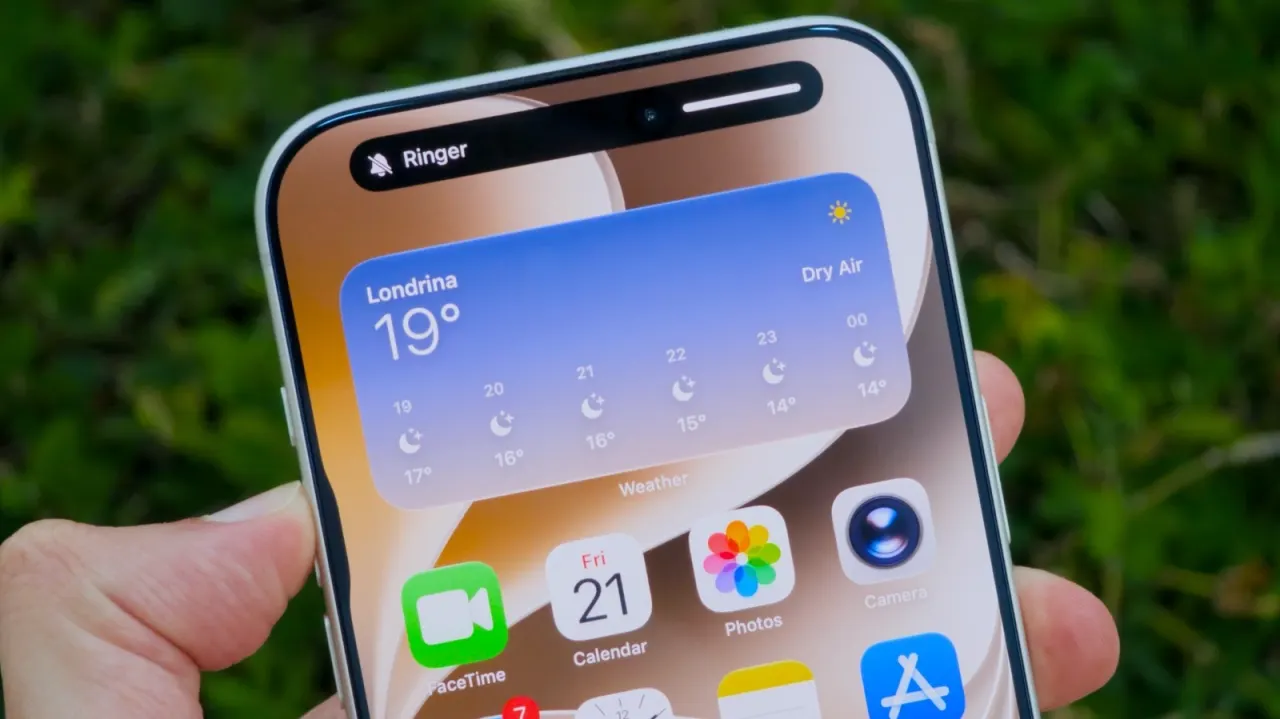
Apple has finally decoupled alarm and ringtone volumes on the iPhone, addressing a long-standing complaint that turning down the ringtone (or muting calls) could also silence alarms, causing users to oversleep. The change arrives with iOS 27 and gives users independent control over how loudly alarms and timers sound, regardless of other volume settings, meaning phones can be kept quiet for calls and notifications while still guaranteeing a loud wake-up alert.
To enable it, users need to go to Settings, then Sounds & Haptics, and switch off "Match Ringtone Volume" in the Alarms & Timers section, which reveals a separate slider for alarm and timer volume. iOS 27 also lets users fix the volume of system alerts, such as notifications and keyboard sounds, and control whether the physical volume buttons affect ringtones or only media playback. The changes can be reversed by re-enabling the toggles, and the update forms part of a wider set of quality-of-life improvements in iOS 27, alongside a revamped Siri and refinements to the Liquid Glass design. Apple typically releases major software updates in September alongside new devices, though a public beta is already available for those wanting early access.
In short
- iOS 27 separates alarm volume from ringtone/call volume settings
- Toggle off "Match Ringtone Volume" in Sounds & Haptics to enable it
- Update also brings a new Siri and Liquid Glass design tweaks
Explained simply
Apple's iPhone software has, until now, tied alarm volume to the ringtone and calls volume, so anyone who muted their phone or turned calls down risked sleeping through their alarm. This has been a persistent gripe among users, particularly since alarms are relied on for something as basic as waking up on time.
Apple is addressing this with iOS 27, its next major operating system update for iPhones, which is typically released each September alongside new hardware. The update separates alarm and timer volume from other sound settings, so people can keep their phone quiet for calls and notifications while still being sure their alarm will sound loudly.
The change is one of several sound-related adjustments in iOS 27, alongside updates to Siri and the visual design of the interface, and is part of Apple's broader pattern of refining everyday usability features through annual software updates.