Technology news and discussion on TalkFuse.
One cable mistake could be killing your desktop PC’s gaming performance
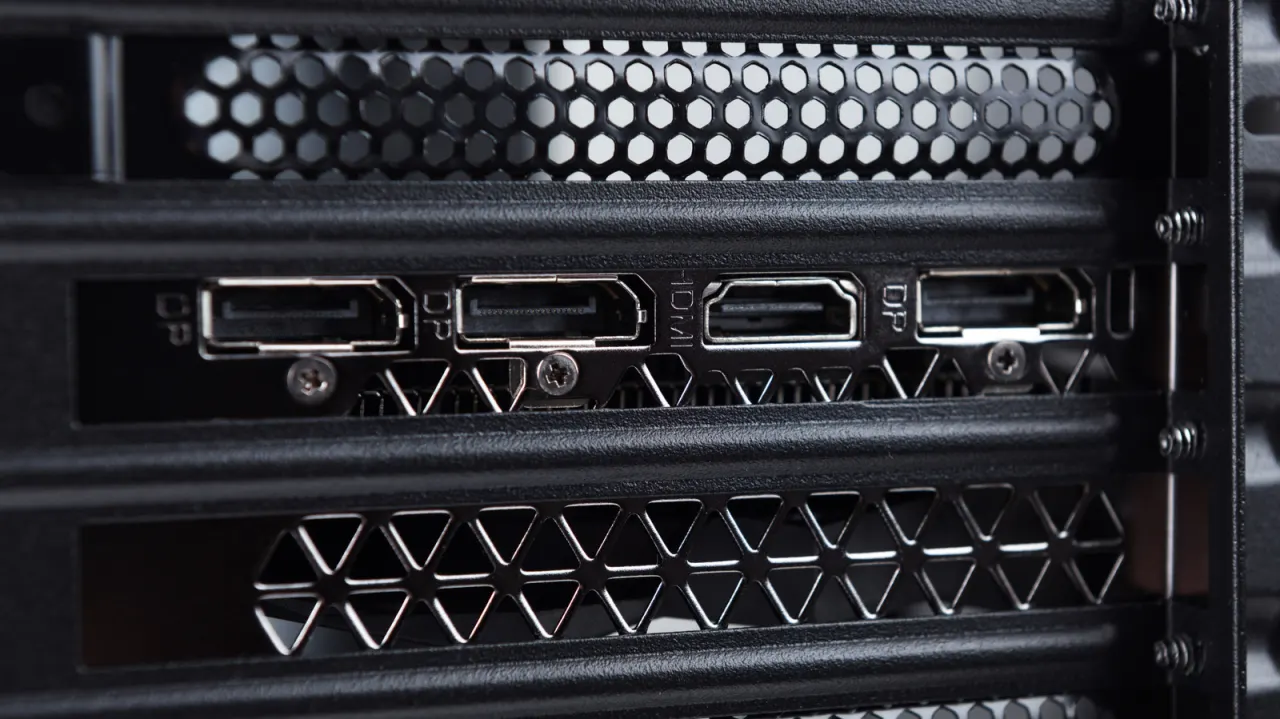
A monitor connected to a desktop PC’s motherboard may use the processor’s integrated graphics instead of the dedicated graphics card, reducing gaming performance or producing a blank screen. Checking the back of the case and moving the monitor cable to the graphics card can resolve the issue.
Motherboard video ports are usually grouped with USB, Ethernet and audio connections, while graphics card ports sit on a separate expansion bracket. The performance impact varies by system, and Windows may still use the dedicated card with some added overhead. HDMI and DisplayPort can both support high refresh rates when the graphics card, monitor and cable allow it; Windows 11 users can check their display’s refresh rate in Advanced display settings.
In short
- Check whether your monitor is plugged into the graphics card.
- Motherboard ports may use weaker integrated graphics or show no image.
- Check Windows’ refresh rate setting after moving the cable.