Entertainment news and discussion on TalkFuse.
Apple CarPlay isn’t working in your car? Here’s what to check first
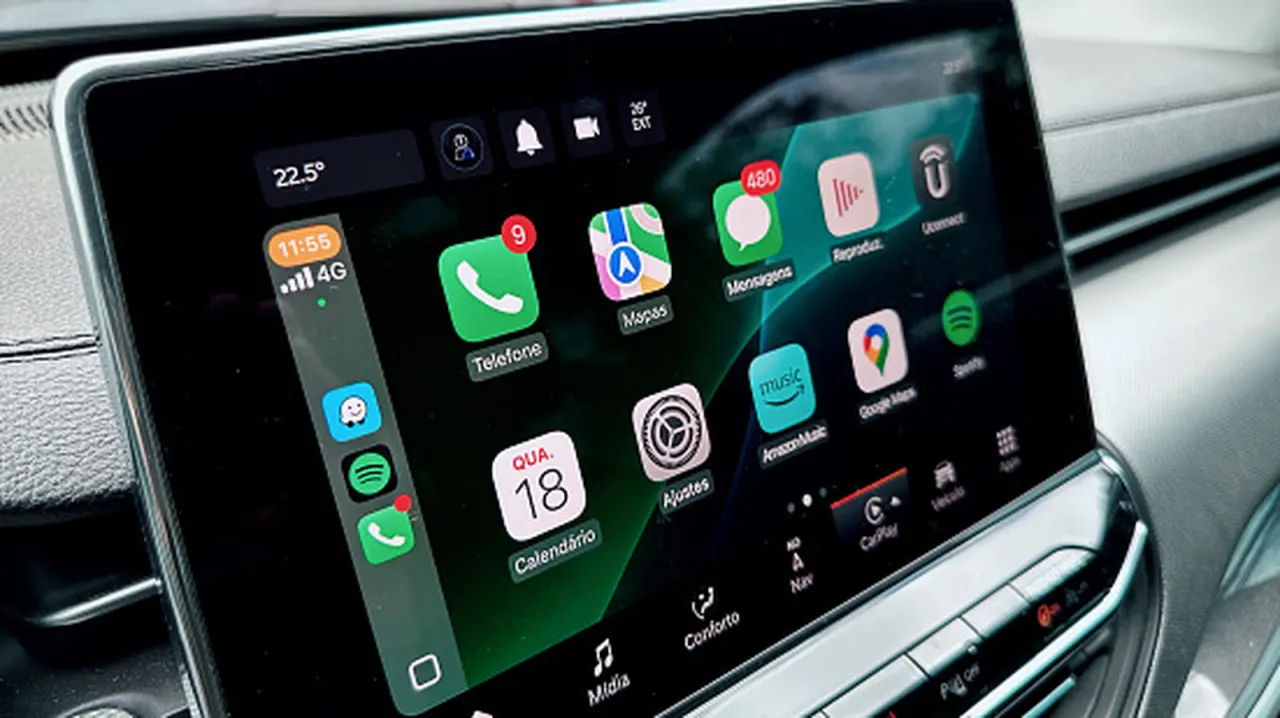
Apple CarPlay failures are usually caused by simple connection, settings or software issues rather than a costly fault. The guide recommends checking these basics first, as restoring CarPlay improves access to navigation, music and hands-free communication while avoiding reliance on a phone screen while driving.
Users should restart both the iPhone and car, open CarPlay manually from the infotainment display if needed, confirm vehicle compatibility and ensure Siri is enabled. They should also update iOS, allow CarPlay while the phone is locked if appropriate, and inspect the wired cable or wireless connection; enabling access while locked is convenient but can expose calls, messages and other data to someone with the phone and car.
In short
- Restart the iPhone and car before deeper troubleshooting.
- Check Siri, iOS updates and CarPlay compatibility.
- Review lock-screen permissions and connection hardware.
Explained simply
Apple CarPlay links an iPhone to a car’s infotainment system, allowing drivers to use services such as maps, music and hands-free calling through the car’s display. It works only with compatible vehicles and relies on the phone, car and their connection settings working together.
Siri, Apple’s voice assistant, is needed for many CarPlay functions, and the car may need CarPlay selected on its display. The connection can be wired or wireless, depending on the vehicle, and phone software and access settings can also affect whether it works.
CarPlay can make some phone features easier to use without handling the phone while driving. Allowing it to connect when the phone is locked may be convenient, but could give someone with access to both the phone and car a route to calls, messages or other information.