Tweak Roku TV picture settings for a more accurate display
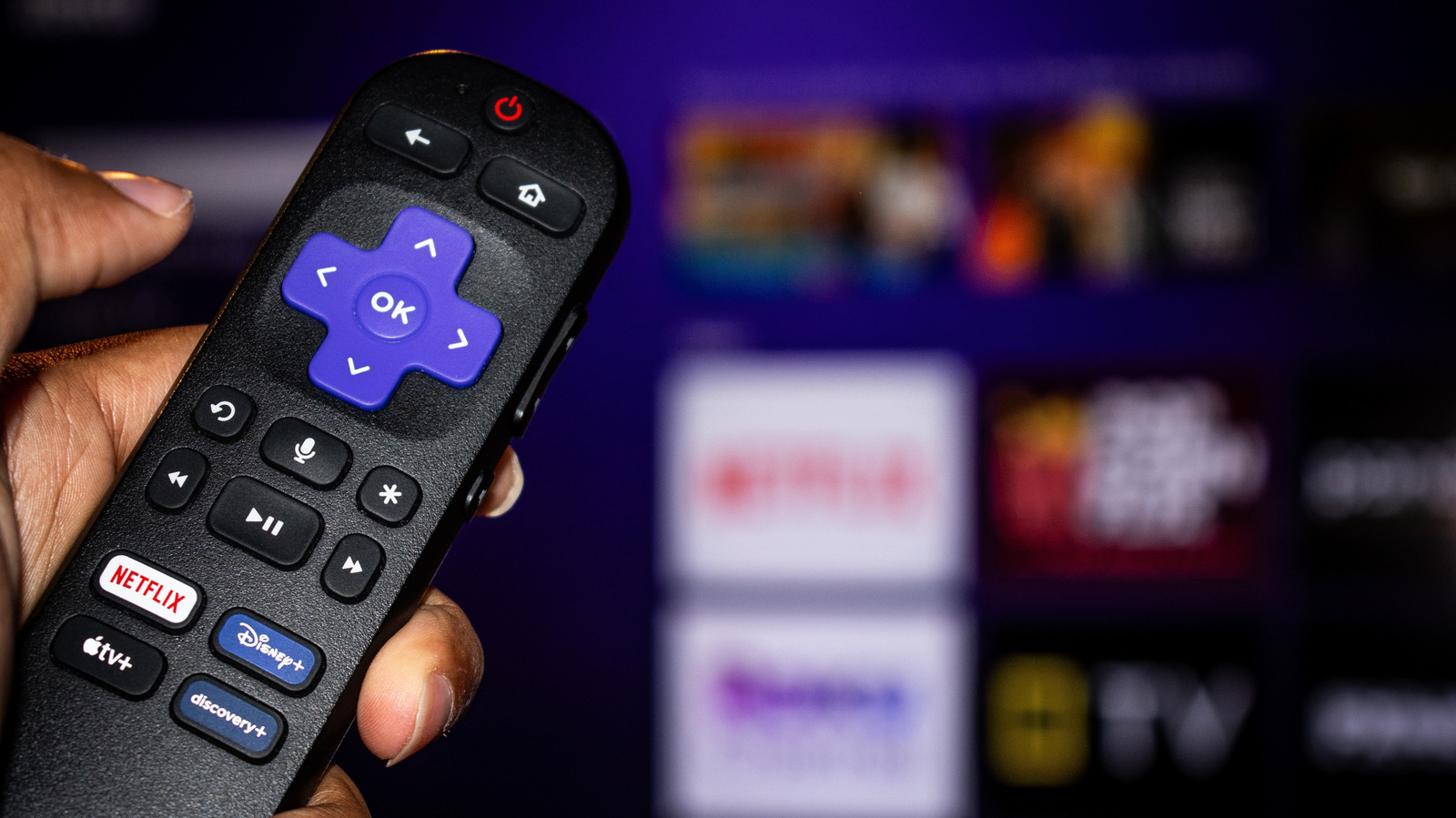
Roku TVs' factory settings prioritise eye-catching display in shops rather than accurate picture quality, but simple adjustments can significantly improve the image without professional calibration equipment. The guide provides steps to access and optimise various picture settings available on most Roku models.
– Press the star button on your remote and select Picture Settings
– Choose Standard or Movie mode for the most accurate picture; avoid Vivid mode, which artificially boosts colour and contrast
– Movie mode offers less image processing and warmer colour temperature
– Adjust backlight higher for bright rooms and customise brightness, contrast and sharpness in small increments
– Disable or set Action Smoothing (or similar motion interpolation settings) to Low to avoid an artificial "soap opera" appearance
– In Expert or Advanced settings, disable Noise Reduction and Dynamic Contrast for maximum accuracy
– Use the "Apply settings to all inputs" button to avoid repeating adjustments for each input
- Factory settings prioritise showroom appeal over accurate picture quality
- Select Movie or Standard mode and disable motion smoothing for better results
- Apply settings across all inputs at once to save time
Read the full article at the source →
Originally published by Engadget as “Improve your Roku TV’s image quality by changing these settings”.