How to add and customize your CarPlay widgets
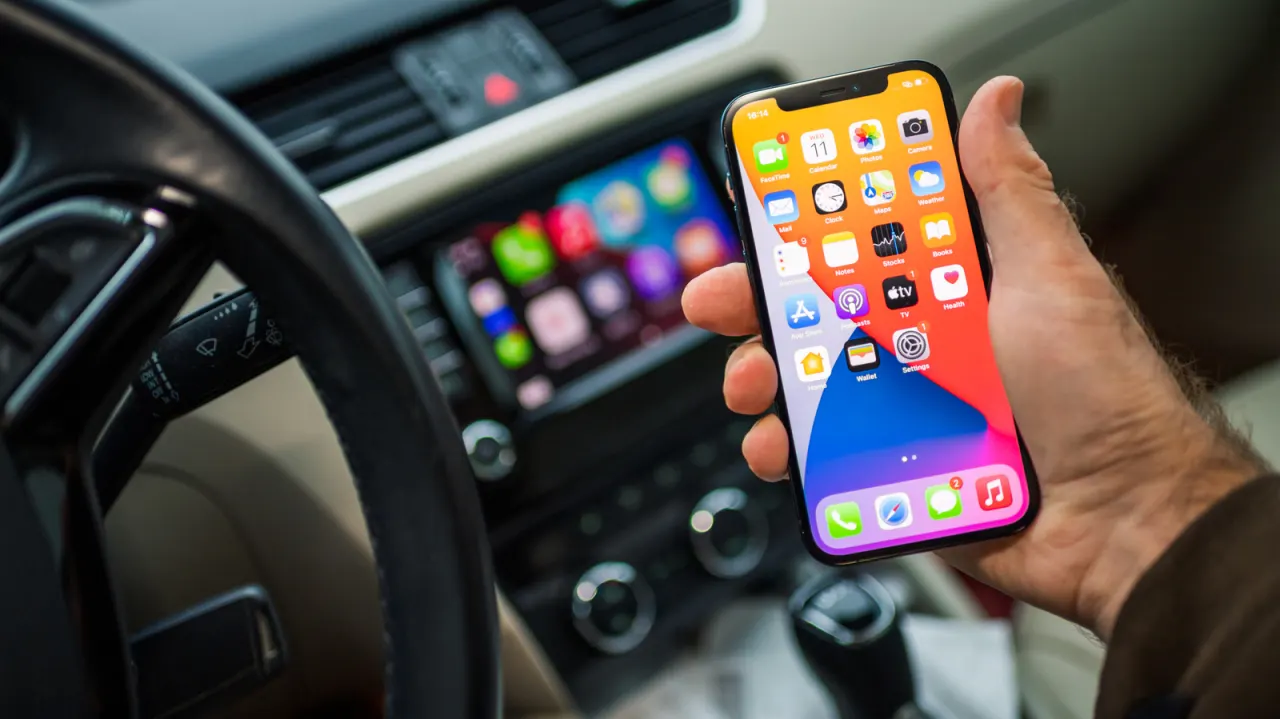
Apple’s CarPlay widgets let drivers view information from a range of iPhone apps alongside the usual navigation, messaging and audio features. They add customisable at-a-glance details to the dashboard, with the article advising drivers to choose options that are useful and unlikely to distract.
To set them up while parked, open Settings on the iPhone, go to General > CarPlay, choose the car, then select Widgets and add compatible options. Drivers can rearrange or remove widgets, adjust some settings, and enable Smart Rotate or Widget Suggestions; the number visible at once depends on the car’s screen size. Examples include Weather, Home, Photos, sports scores, order updates and chatbot assistants, with the available selection expanded in iOS 27.
- CarPlay widgets show quick information from compatible iPhone apps.
- Add, arrange and customise them in iPhone CarPlay settings.
- Choose glanceable widgets to help keep driving focused.
New here? Start with this
Apple's CarPlay is a system that connects your iPhone to your car's display, letting you access navigation, messaging and music safely whilst driving. Widgets are small app elements that show useful information at a glance—like weather, traffic updates or home controls—without requiring you to open the full app.
CarPlay widgets have become increasingly important as cars and smartphones integrate more closely. They allow drivers to customise what information appears on their dashboard, potentially improving convenience whilst managing distraction during journeys.
Users can configure their widgets through their iPhone's Settings, selecting which compatible apps to display and rearranging them based on personal preference. The range of available widgets includes weather forecasts, home controls, sports scores and delivery tracking, with options varying depending on your car's screen size and installed apps.