How to fix scaling and app size issues on your Samsung Galaxy Z Fold 8
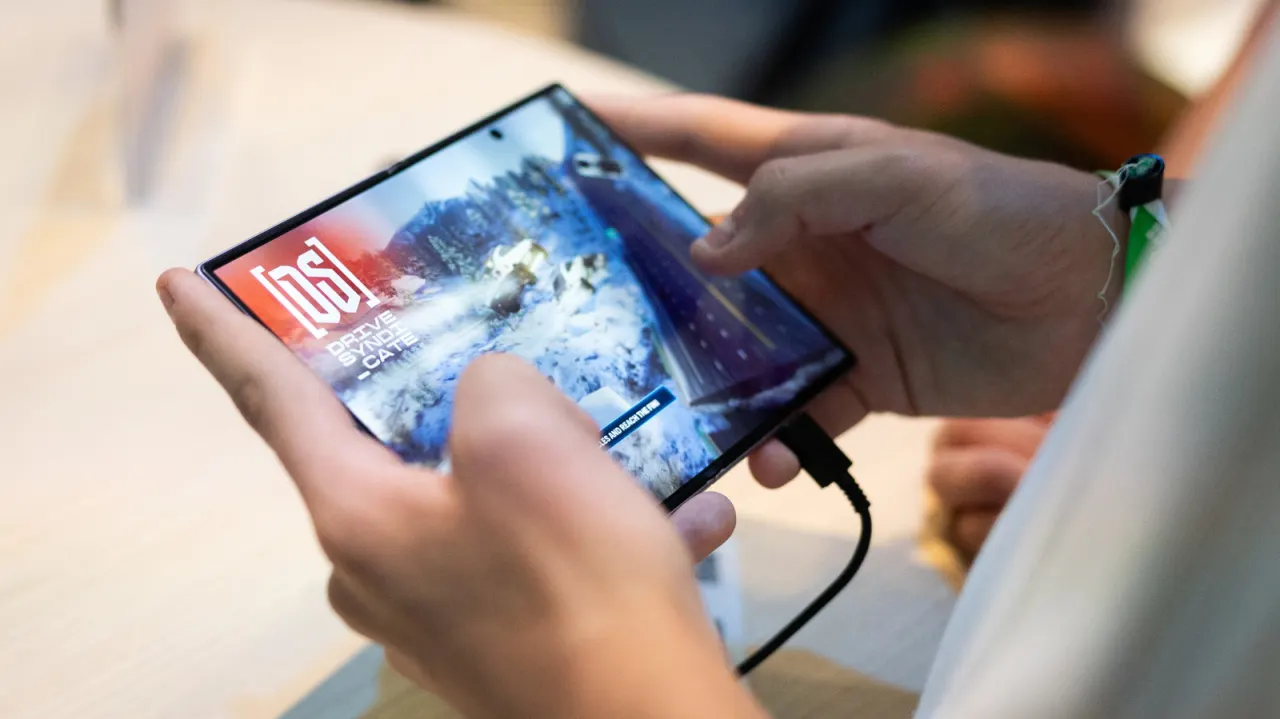
Some Galaxy Z Fold 8 owners have found that apps do not fit the phone’s 4:3 inner display properly, making the foldable’s larger screen less convenient to use. Samsung lets users set an aspect ratio for each app, which can improve how it appears when opened.
With the phone unfolded, go to Settings > Display > Aspect ratio, or find the option through Settings > Apps, then choose an app and set it to full screen, 4:3 or 16:9. You can also reach the setting by pressing and holding an app icon and opening its app information. Apps running in the background may need to restart, and apps that are not optimised for the display can still appear cropped or awkwardly positioned.
- Set a display ratio for individual apps.
- Choose full screen, 4:3 or 16:9.
- Some apps may still look poorly fitted.
New here? Start with this
The Galaxy Z Fold 8 is a foldable Samsung phone with a large inner screen that opens to a roughly square shape. Apps designed for ordinary phone screens may not use that space neatly, leaving parts of the display unused or putting content in awkward positions.
Samsung provides an aspect ratio setting for individual apps, letting owners choose how each one fills the screen. The result can vary: an app may need to restart before the change takes effect, and some apps may still look cropped or poorly arranged.