Technology news and discussion on TalkFuse.
Check real world USB transfer speeds and identify connection bottlenecks
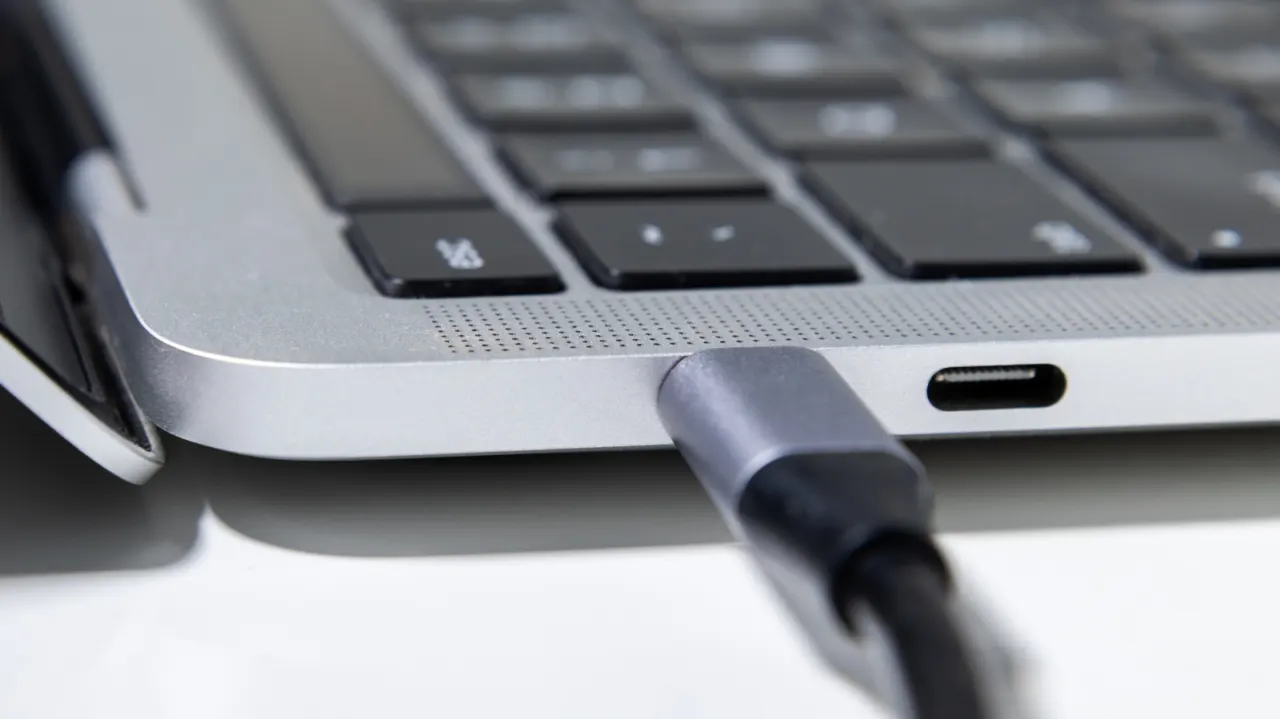
USB transfer speeds depend on the port, cable and connected device, so a fast drive may not reach its advertised performance if another part of the connection is slower. The article explains how to measure transfer rates and check which USB speed a Windows computer is using.
CrystalDiskMark on Windows and AmorphousDiskMark on macOS can run sequential read and write tests; Windows users can also use USBView from the Windows SDK to see a device’s reported bus speed. For a meaningful test, use a capable drive and cable, avoid thumb drives, and connect hubs to the computer’s fastest port. The article lists speeds from USB 2.0 at 480 Mbps to USB4 at up to 80 Gbps, while noting that real transfers rarely reach theoretical maximums and results in bytes per second must be converted to bits per second for comparison.
In short
- Benchmark a connected drive to check transfer speeds.
- USBView can identify a Windows device’s bus speed.
- Use a suitable cable and device to avoid bottlenecks.
Read the full article at the source →
Originally published by Engadget as “Here’s how to properly test your USB speed”.