Technology news and discussion on TalkFuse.
Why AirDrop isn’t working on your Apple devices (and how to fix it)
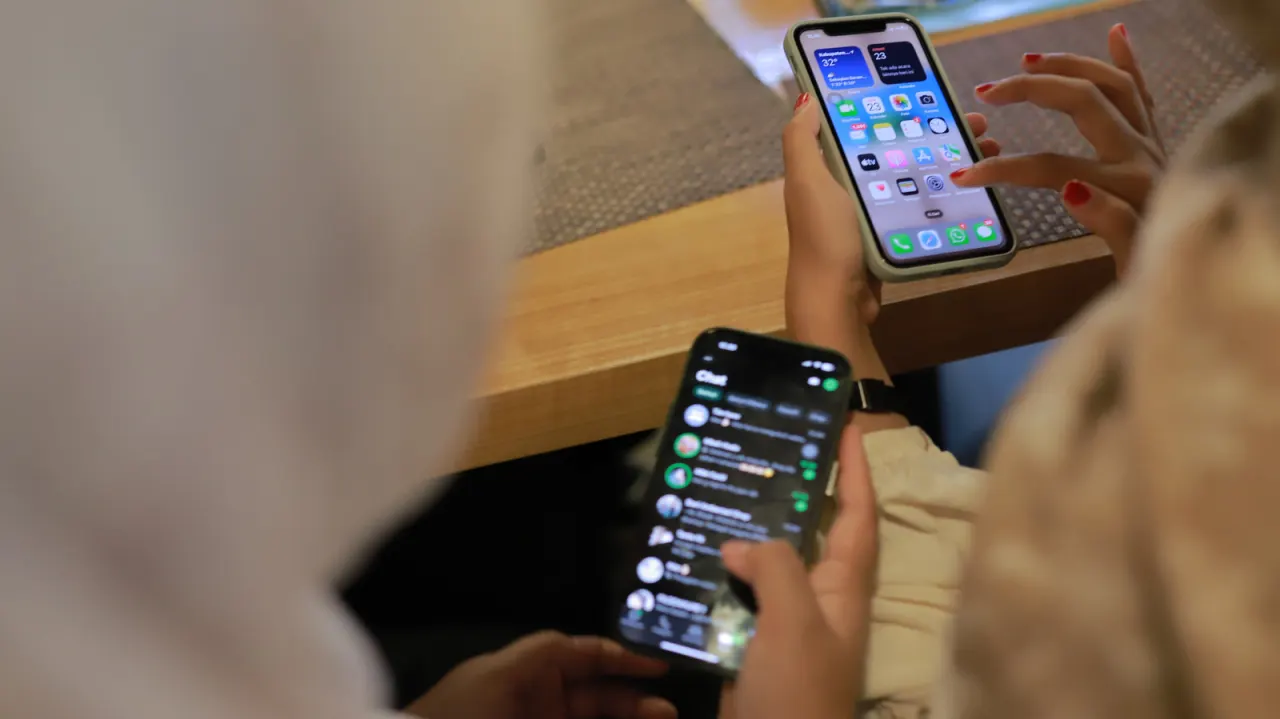
Most AirDrop problems come down to Wi-Fi, Bluetooth, receiving settings and contact details. The guide suggests these checks:
– Turn on Wi-Fi and Bluetooth, keep the devices within 30 feet, and toggle the connections off and on if the signal is unreliable. – Keep both devices awake, because a locked iPhone or iPad will not appear as a recipient. – Note that AirDrop only works between Apple devices. Supported Android phones can use Quick Share instead. – Check the receiving setting in Control Center: Receiving Off, Contacts Only or Everyone for 10 Minutes. – For Contacts Only, the sender must be in your contacts, and your Apple Account email address or phone number must be on your contact card. – After software updates, people outside your contacts may need an AirDrop code, which lasts 30 days. – Disconnect Personal Hotspots and VPNs, check Mac firewall settings, and reboot both devices. If problems continue, visit an Apple Store.
In short
- AirDrop needs Wi-Fi and Bluetooth on, with devices within 30 feet.
- Check receiving settings, since Contacts Only needs mutual contact details.
- Reboot both devices and disable hotspots and VPNs if problems persist.