Technology news and discussion on TalkFuse.
Why your USB device isn’t showing up on your MacBook and how you can fix it
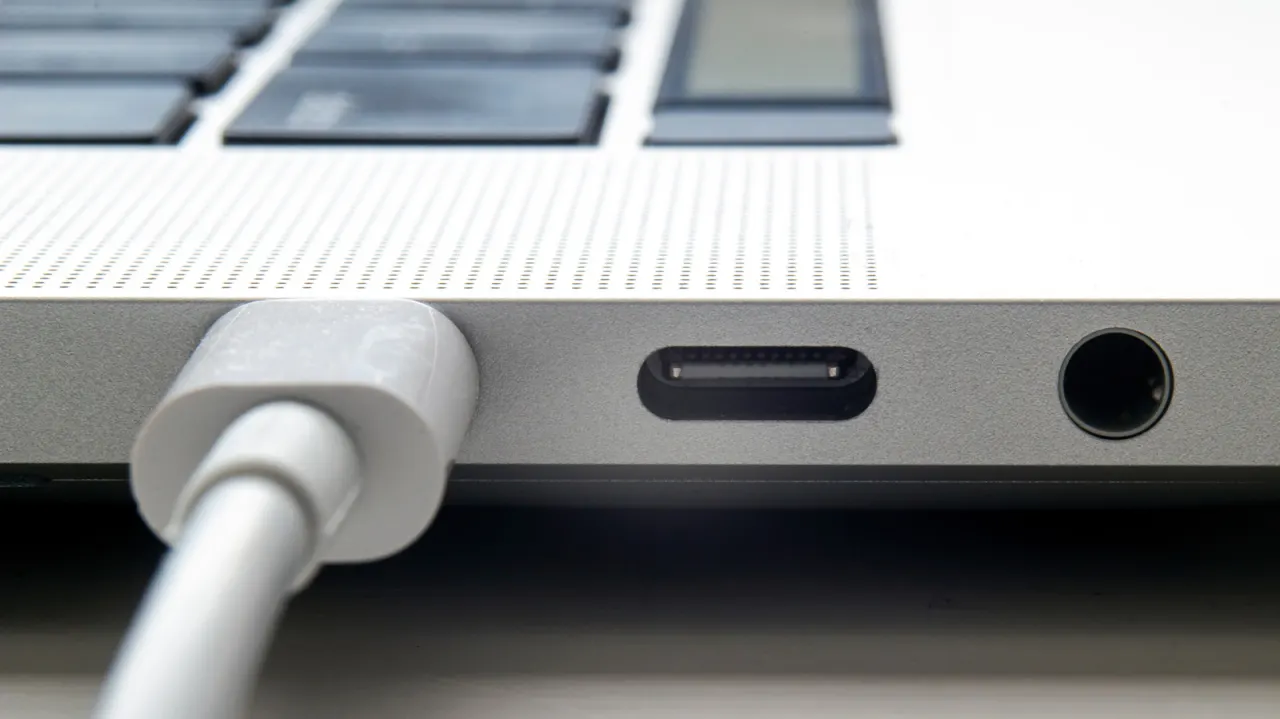
macOS may fail to recognise a USB accessory because of a permission setting, insufficient power, a faulty connection or software compatibility issues. The article outlines checks MacBook users can try before seeking technical support.
First, unplug and reconnect the accessory to bring back a connection permission prompt, or review accessory access under Privacy & Security in System Settings. Check whether the device appears in System Information, try another USB port or connect directly instead of through a hub, and make sure the hub has power. Updating macOS and any manufacturer software may help; external drives and cards also need a macOS-compatible format such as APFS, FAT or ExFAT.
In short
- Reconnect the accessory to prompt macOS for permission.
- Try another port or bypass the hub.
- Update software and check drive formats.
Explained simply
USB accessories connect to a MacBook through its ports, sometimes using an adapter or hub. macOS may ask permission before allowing a newly connected accessory to communicate with the computer.
If a device does not appear, the cause may be the cable, port, available power or software, rather than the device itself. External drives and memory cards also need a format that macOS can read, such as APFS, FAT or ExFAT.
Apple provides macOS and its accessory settings, while some devices also rely on software from their manufacturer. Checking the connection, power, permissions and compatibility can help identify where the problem lies.