Here’s how to format a USB drive on Windows
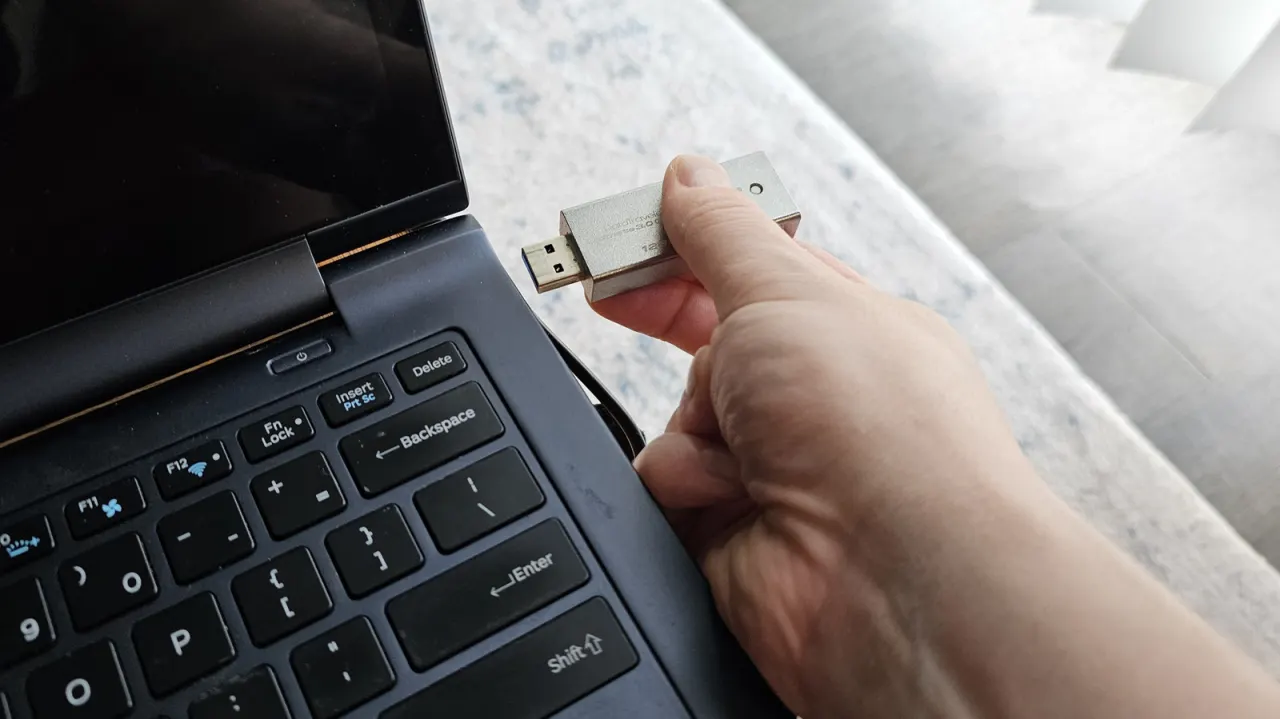
Engadget has published a how-to guide explaining when and why users should format a USB drive on Windows, noting that formatting is useful not only for wiping old drives but also for preparing brand-new ones. Manufacturers often ship flash drives with the older FAT32 format for broad compatibility, but this can be unsuitable for modern needs, so formatting lets users tailor a drive to its intended use, clear hidden malware or corrupted data, and improve stability.
The guide outlines three main file formats: NTFS, best for drives used exclusively with Windows due to its support for partitioning and encryption; exFAT, the most versatile choice for cross-platform use and large files over 4GB, such as on Android devices or for storing videos; and FAT32, an older format with maximum device compatibility but limited to files under 4GB and prone to fragmentation. To format a drive, users plug it into a USB port, open Windows Explorer, select "This PC," right-click the drive, choose "Format," and pick the appropriate file system from the dropdown menu.
- New and old USB drives often benefit from formatting for compatibility and stability.
- NTFS suits Windows-only use; exFAT works best across multiple devices.
- Formatting via Windows Explorer's "This PC" menu is quick and straightforward.